
The fastest reliable way to set up a client workspace is to start from a template, connect the client’s ad and analytics accounts, then turn on reporting automation. Linking a Google Ads manager account correctly and importing Google Analytics data at the outset means you walk away with a working, reportable workspace after a single session instead of chasing permissions for days.
TL;DR:
- Linking accounts in the proper sequence avoids common errors like empty conversions, with Analytics linked before Ads causing validation issues.
- Gathering all account IDs, access levels, and permission confirmation upfront prevents delays during setup, especially for LinkedIn’s developer process.
- Using standardized naming conventions, folder structures, and tagging across clients facilitates scalability and reduces run-time errors.
- Regular testing with test accounts, scheduled checks, and versioned templates help maintain long-term workspace reliability and accurate reporting.
- Limiting permissions, rotating API credentials, and separating test from production environments safeguard client data and prevent accidental leaks or disruptions.
Table of Contents
- What to collect before you begin
- A practical, ordered walkthrough to build the client workspace
- Roles and API considerations that commonly break workspace setups
- Naming patterns, folder structure, and metadata that scale across clients
- Checks, schedules, and the client handoff checklist
- Security best practices for client workspace setup
- Setting up user roles and permissions beyond ad accounts
- Backup and data recovery options within the workspace
- Training and onboarding resources for clients and team members
- Regular maintenance and update routines for the workspace
- Author viewpoint: pragmatic operational trade-offs
- How Gleanit speeds client workspace setup
- FAQ
- Sources
What to collect before you begin
A client workspace setup stalls most often because someone is waiting on an account ID or a login that should have been gathered up front. Pull together these items before you open your platform:
- Google Ads manager account or customer IDs for the client, plus confirmation of the access level you’ve been granted.
- Google Analytics property IDs and Editor or Marketer permissions so you can link properties without a second request.
- LinkedIn ad account IDs, and a plan for whether you’ll need a developer app and access tokens for that connection.
- Confirmation that website tagging (GCLID parameters, auto-tagging) is active, plus a test account if one exists.
- Names and emails for the client’s admin contact, billing contact, and technical lead, in case a permission request needs escalation.
Missing even one of these means a pause mid-setup, usually the kind that costs a day while you wait on a reply.
A practical, ordered walkthrough to build the client workspace
Start by duplicating a workspace template rather than building from a blank canvas. Rename it with the client’s name, set the primary KPIs the account will track, and confirm the workspace type (paid search, paid social, full-funnel) before connecting anything.
- Duplicate and rename the workspace template, then set the client name and primary KPIs.
- Link the client’s Google Ads account through your manager account, confirming whether you need linking access or full administrative ownership under Google’s manager-account rules.
- Link the associated Google Analytics property to that same Ads account so conversion importing and auto-tagging can run without manual intervention.
- For LinkedIn, create or deploy a developer app, generate access tokens, and map the ad account IDs according to the LinkedIn quick start guide.
- Where a test ad account or test campaign is available, connect that first and confirm data is flowing correctly before touching production accounts.
- Turn on report templates and schedule automated delivery to the client and your team.
- Send a first test report and check every linked metric against the platform’s native dashboard.
The order matters more than it looks. Linking Analytics before Ads often produces an empty conversion import because the Ads side hasn’t finished validating the connection. Doing it in the sequence above avoids that specific failure, which is one of the more common reasons a first report comes back with blank columns.
LinkedIn tends to be the slowest link in this chain. Unlike Google Ads, which mostly asks you to confirm an existing relationship, LinkedIn’s integration is a developer project: you request scopes, generate test tokens, and may need to apply for a production API tier if you plan to use lead sync or ad creation features. Budget extra time here on a new client’s first setup, not on every renewal.
Testing before production matters just as much as the order of the links. Agencies that validate creative or campaign structure in a staging environment, the kind of workflow described in tools built for testing ad creatives before spending, tend to catch tracking errors before they touch a client’s real budget. The same logic applies to your workspace: connect a test account, confirm the data looks right, then move to the live one.
Pro Tip: Run your first automated report against a test account, not the live one, so a broken connector shows up as an empty test report instead of a client-facing surprise.
Roles and API considerations that commonly break workspace setups
Most setup failures trace back to a permission that looked sufficient but wasn’t. A few distinctions are worth knowing cold:
- A Google Ads manager account lets you view and manage multiple client accounts from one dashboard, but linking an account is not the same as administrative ownership. Confirm which one you’ve actually been given before promising a client full control handoff later.
- Google Analytics requires Editor or Marketer-level access to link a property to a manager account and to enable conversion importing. Viewer access will not let you complete the link.
- Auto-tagging has to be active on the Google Ads account for GCLID parameters to populate correctly. Without it, imported conversions from Analytics can show up incomplete or missing entirely.
- LinkedIn’s developer flow asks you to create an app, request the right scopes, generate tokens, and map ad account IDs. Higher-volume features like lead sync often require applying for a production tier, which is not instant.
- Slack and similar collaboration tools ask for permission scopes on install. Review what an app can see and do before granting it, and default to the minimum scope that gets the job done, per Slack’s own permissions guidance.
None of these steps are hard individually. The trouble comes from skipping the confirmation step and assuming access, which is how a workspace looks finished until the first scheduled report fails silently.
Naming patterns, folder structure, and metadata that scale across clients
A naming convention that works for three clients falls apart at thirty unless you fix it early. A pattern like “Client, Workspace type, YYYY-MM” (for example, “Acme Co, Paid Social, 2026-03”) keeps workspaces sortable by date and type without opening each one to check.
- Keep a consistent folder structure inside every workspace: dashboards, reports, audits, raw data, and archives.
- Tag assets by channel, KPI, and environment (production or test) so filtering doesn’t require opening every file.
- Save recurring report types as versioned templates rather than rebuilding the same report layout for each client.
- Apply the same tagging logic across every client workspace, not just the ones currently active, so the convention still holds when a dormant account reactivates.
Agencies running multiple brands through one operation run into this exact scaling problem, and the fix is almost always the same: fewer one-off decisions, more templates that get reused without a rebuild.
Pro Tip: Name test workspaces with a visible “TEST” tag in the folder path, not just the workspace title, so nobody schedules a client report against the wrong environment by mistake.
Checks, schedules, and the client handoff checklist
A workspace that works on day one needs upkeep to keep working. Build these into a weekly rhythm rather than discovering a broken connector during a client call.
- Run a weekly check for data freshness, unusual spend patterns, and any connector that has silently stopped pulling data.
- Confirm the report delivery schedule and that version numbers on templates match what the client last saw.
- Keep a short change log whenever a conversion definition or attribution model changes, so past and future reports stay comparable.
- Schedule a 30 to 60 minute walkthrough with the client covering access levels, notification settings, and where to find reports.
- Before invoicing, verify conversion imports are current, GCLID tagging is intact, and the last scheduled report actually sent.
That final audit step catches more billing disputes than any other single habit. A client who can see their report arrived on schedule rarely questions the invoice that follows it.
Security best practices for client workspace setup
Client data sitting in a shared workspace is only as safe as the weakest permission granted to reach it. Start by assigning the lowest level of access that lets each person do their job: a junior analyst rarely needs billing access, and a client stakeholder rarely needs the ability to delete a connected account.
Review third-party app permissions before granting them a place inside the workspace. A connector requesting broad read and write access across every linked account is a bigger risk than one scoped narrowly to a single data source, and Slack’s permission model is a useful reference point for thinking about scopes generally, not just inside Slack itself.

Rotate API tokens and developer app credentials on a schedule rather than leaving them active indefinitely, particularly for LinkedIn integrations where a token grants ongoing access to ad account data. Remove access immediately when a team member leaves or a client relationship ends, and keep a record of who had access to which workspace and when.
Separate test environments from production accounts completely. A test campaign connected with the same credentials as a live account creates a path for mistakes to reach real client budgets, which is exactly the scenario a dedicated test account setup is meant to prevent.
Setting up user roles and permissions beyond ad accounts
Ad account permissions get most of the attention, but the collaboration tools wrapped around a workspace need the same discipline. Slack channels, Discord servers, and shared drives often end up with broader access than anyone intended, simply because nobody revisited the defaults after onboarding.
Assign roles by function rather than by convenience: a client contact who only needs to view reports should have viewer access, not the same permissions as the account manager running the campaigns. Review app permissions before installing any integration into a shared workspace, checking exactly what data it can read and what actions it can take, in line with the scoped-access approach Slack recommends for any connected app.
Keep a single source of truth for who has access to what. When a workspace spans an ad platform, an analytics tool, a reporting dashboard, and a messaging channel, a scattered permission list across four systems is how former employees end up with lingering access months after they’ve left.
Backup and data recovery options within the workspace
A workspace with no backup plan treats every connector as permanent, which none of them are. Export raw data and report snapshots on a schedule, not just when something breaks, so a lost connection or an accidentally deleted dashboard doesn’t erase months of history.
Keep copies of report templates outside the live workspace, in a shared drive or version control system, so a corrupted template can be restored in minutes rather than rebuilt from scratch. The same applies to naming conventions and folder structures: documenting them once means a new team member can rebuild a damaged workspace to the same standard without guesswork.
Test your recovery process occasionally rather than assuming it works. Restoring a report template or reconnecting a data source after an account change is a different exercise than exporting data for the first time, and the gap between the two is where most recovery plans fail quietly until the day they’re actually needed.

Training and onboarding resources for clients and team members
A workspace is only useful if the people using it know where things live. Build a short onboarding packet for every new client covering where reports arrive, how to request a change, and who to contact for access issues. Keep it to a single page; a ten-page onboarding document gets skimmed once and never opened again.
For internal team members, document the setup sequence itself, the one in the walkthrough above, so a new hire can configure a workspace without shadowing someone else for a week. A practical checklist for monitoring Google Ads accounts is a good companion reference for new team members still learning the linking sequence.
Revisit training material every time a platform changes its permission flow or linking process, since a guide written against last year’s LinkedIn developer flow will send a new hire down the wrong path. Treat onboarding documentation as part of the workspace itself, not a separate artifact that goes stale in a shared drive nobody checks.
Regular maintenance and update routines for the workspace
Setup is the easy part. The workspaces that stay reliable are the ones with a maintenance routine that runs whether or not anything looks broken. Check connector status weekly, confirm scheduled reports actually sent, and watch for API or permission changes on the platforms you’ve connected, since a policy update on LinkedIn or Google Ads can quietly break a link that worked fine the week before.
Review naming conventions and folder structures quarterly as the client roster grows, since a system built for ten workspaces often needs adjustment at fifty. Keep the change log current whenever a conversion definition, attribution model, or reporting template changes, so a client asking why last month’s numbers don’t match this month’s has a documented answer rather than a guess.
Treat report templates the same way: update them when a platform adds a new metric worth tracking, and retire ones nobody has opened in months. A workspace that accumulates unused templates and outdated tags becomes harder to audit every quarter it goes unattended.
Author viewpoint: pragmatic operational trade-offs
Templates win for speed, but a client with unusual attribution needs deserves custom tracking from the start rather than a retrofit later. The harder call is access ownership: letting a client keep administrative control of their Ads account protects them if the relationship ends, but it slows every permission request on your side. Pick deliberately, not by default.
— Ovannes
How Gleanit speeds client workspace setup
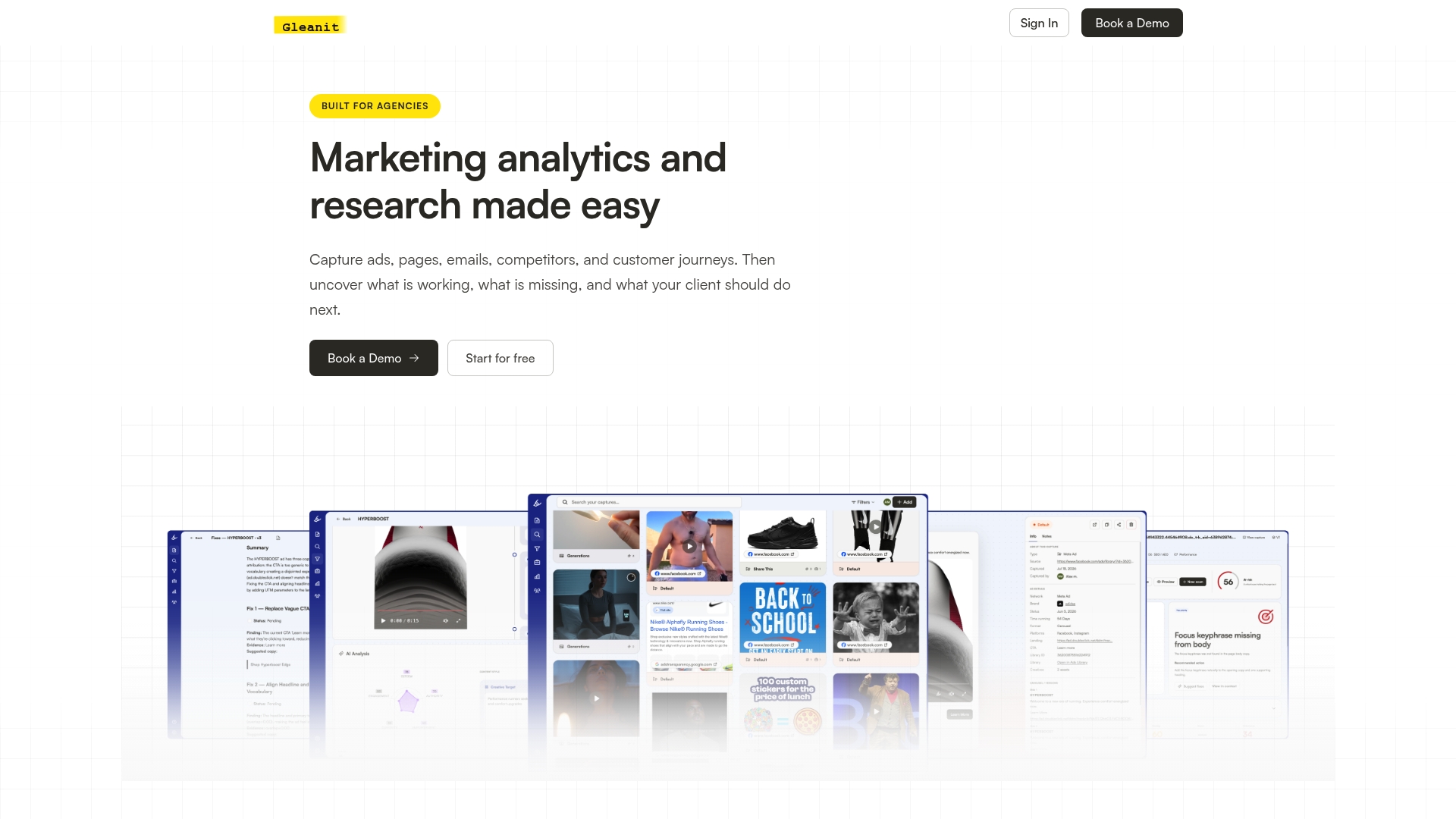
Agencies rebuilding the same workspace structure for every new client lose hours that a template eliminates in minutes. Gleanit was built around that exact problem: dedicated client workspaces that start from a template, automated monitoring that watches Meta, TikTok, Google, and LinkedIn ads from one connected view, and report templates designed to cut the manual work out of recurring client updates.
- Workspace templates that carry over naming conventions and folder structures instead of starting blank each time.
- Automated monitoring across ad platforms, so a broken connector or a spend anomaly surfaces without a manual check.
- Report templates built for recurring delivery, cutting the setup time a fresh report normally takes.
The Solo plan runs $99 per month and the Agency plan runs $459 per month on the Gleanit pricing page, with additional users and workspaces each available for $20 per month. If you want to see where your current setup has gaps before changing anything, start with a free marketing audit.
FAQ
What accounts do I need before starting a client workspace setup?
You’ll need the client’s Google Ads manager or customer account IDs, Google Analytics property IDs with Editor or Marketer access, and LinkedIn ad account IDs if that platform is in scope. Gathering these upfront, along with admin and technical contacts, prevents the most common mid-setup delays.
Should I link accounts before or after setting up test campaigns?
Connect a test ad account or test campaign first wherever one is available, confirm the data flows correctly, then move to the production account. This order catches tracking errors before they reach a client’s live budget rather than after.
How long does a typical client workspace setup take?
A templated workspace with straightforward Google Ads and Analytics linking can be completed in a single working session. LinkedIn integrations usually take longer on a new client’s first setup, since the developer app and token process involves more steps than Google’s account linking.
Does the client need to keep ownership of their ad accounts?
Many clients prefer to retain administrative ownership of their own Ads and Analytics accounts even when an agency manages day-to-day work through a linked manager account. This protects the client if the agency relationship ends, though it means permission changes may take longer to process on the agency’s side.
Sources
- Link Google Analytics to a Google Ads manager account (MCC) - Google Ads Help
- Quick Start - LinkedIn | Microsoft Learn
- Understand app permissions - Slack Help Center
Recommended
- Monitor Meta Ads in 10 Minutes: 2026 Automation First Workflow for Agencies
- Client Reporting Templates: Report in 45 Minutes
- Automate Marketing Reports for Agencies: Start With Data Governance
- 45 Minute LinkedIn Ads Competitor Audit for Agencies
Corrections: ovannes@hearye.co or our editorial policy.