
The Facebook (Meta) Ad Library is a free, public database of every active Meta ad, and marketers use it to reverse-engineer competitors’ creative before spending a dollar of their own. Go to facebook.com/ads/library right now, set your country filter, and search a competitor’s name. Everything else in this guide builds on those two moves.
TL;DR:
- Setting your country filter is crucial, as search results are scoped to the ad reach in that specific market, affecting visibility and relevance.
- The archive duration for commercial ads outside the EU is limited to active campaigns, making historical data inconsistent and less reliable for long-term analysis.
- Using domain searches provides more comprehensive results than brand or keyword filters, especially when brands operate multiple Page names or regional accounts.
- Ad runtime is a strong indicator of creative effectiveness, with ads running for weeks or longer typically having proven their ability to generate engagement.
- The impression range buckets are coarse signals, so low impression badges should be treated as potential early-stage campaigns rather than failed efforts.
Table of Contents
- What the Facebook Ad Library actually shows you
- How to access the Facebook Ad Library
- Search and filters: finding the exact ads you need
- Reading an ad’s details: what the fields actually tell you
- Practical ways to use the Ad Library for research and creative ideas
- Advanced tips, API notes, and pro tricks
- Turning Ad Library research into tests and client reports
- What the Ad Library doesn’t tell you
- Troubleshooting common problems and quick fixes
- How Gleanit approaches Ad Library research day to day
- Gleanit: automate ad capture, swipe files, and client reports
- Sources
What the Facebook Ad Library actually shows you
The Ad Library covers ads running across Facebook, Instagram, Messenger, Threads, and Audience Network, with WhatsApp surfacing in some ad placements where Meta supports it. That’s a wide net, but the data behind each platform isn’t uniform, and understanding why matters before you draw conclusions from what you see.
Meta splits its disclosure rules into two buckets. Political and social-issue ads are archived for an extended period under stricter transparency requirements, allowing access to creative from past campaigns. Standard commercial ads, the kind most marketers care about, only stay visible while they’re active in most regions, with limited archival outside the European Union. That single distinction explains a huge chunk of the “why can’t I find this ad anymore” frustration new users hit.
Open any ad and you’ll see the creative itself, ad copy, the call-to-action button, platform icons showing where it’s running, a start date, and an active/inactive status. If the ad targets EU audiences, Meta shows extra fields, including more granular date ranges, because of local disclosure law. Outside the EU, you get less historical texture. This is why savvy researchers treat the EU filter as a workaround, which we’ll cover in the advanced tips section.
How to access the Facebook Ad Library
Two paths get you in, and both are free. The direct route is facebook.com/ads/library, which you should bookmark if you’re running recurring competitor checks. The second path starts from any Facebook Page: click “Page Transparency,” then “Go to Ad Library” to see everything that Page is currently running.
Basic searches require no Facebook account at all, so you can hand this tool to a junior team member without setting up credentials. Where an account starts to matter is programmatic access. The Ad Library API requires developer verification, and heavy manual querying without login can trigger temporary rate limiting. If you’re checking a handful of competitors weekly, skip the account. If you’re monitoring dozens of advertisers across multiple markets, plan for API access from day one.
Search and filters: finding the exact ads you need
Country comes first, every time. Set it before you type a single keyword, because Meta scopes results to wherever the ad reached audiences, and skipping this step is the number one reason searches return nothing useful.
Once the country’s set, the rest of the filters do specific jobs:
- Ad category switches between “All ads” (the default for commercial research), “Issues, elections, or politics” (the seven-year archive), and “Branded content,” which isolates paid creator partnerships.
- Platform filter narrows results to Facebook, Instagram, Messenger, Threads, or Audience Network, useful when you want to see if a competitor treats Reels differently than feed placements.
- Media type separates image, video, and carousel formats, which helps you spot whether a brand leans on static creative or motion.
- Language filter matters more than people expect, especially for brands running the same offer in multiple dialects or regions with mixed languages.
- Active status toggles between currently running and all ads (where archival data allows), letting you distinguish live tests from retired campaigns.
- Impression-range buckets and date filters, where Meta makes them available, give you a coarse read on scale and a runtime window to sort by.
For search terms, you have three real options: advertiser name, keyword, and domain. Advertiser name works fine when the Page name is exact and unambiguous. Keyword search is your best tool for mapping how an entire category talks about a problem, useful when you’re trying to spot a messaging trend rather than track one brand. Domain search is the one most people never try, and it’s often the most reliable of the three, because it matches against destination URLs embedded in the creative rather than relying on a clean Page name match. If a brand runs ads under three slightly different Page names, a domain search still finds all of them.
Reading an ad’s details: what the fields actually tell you
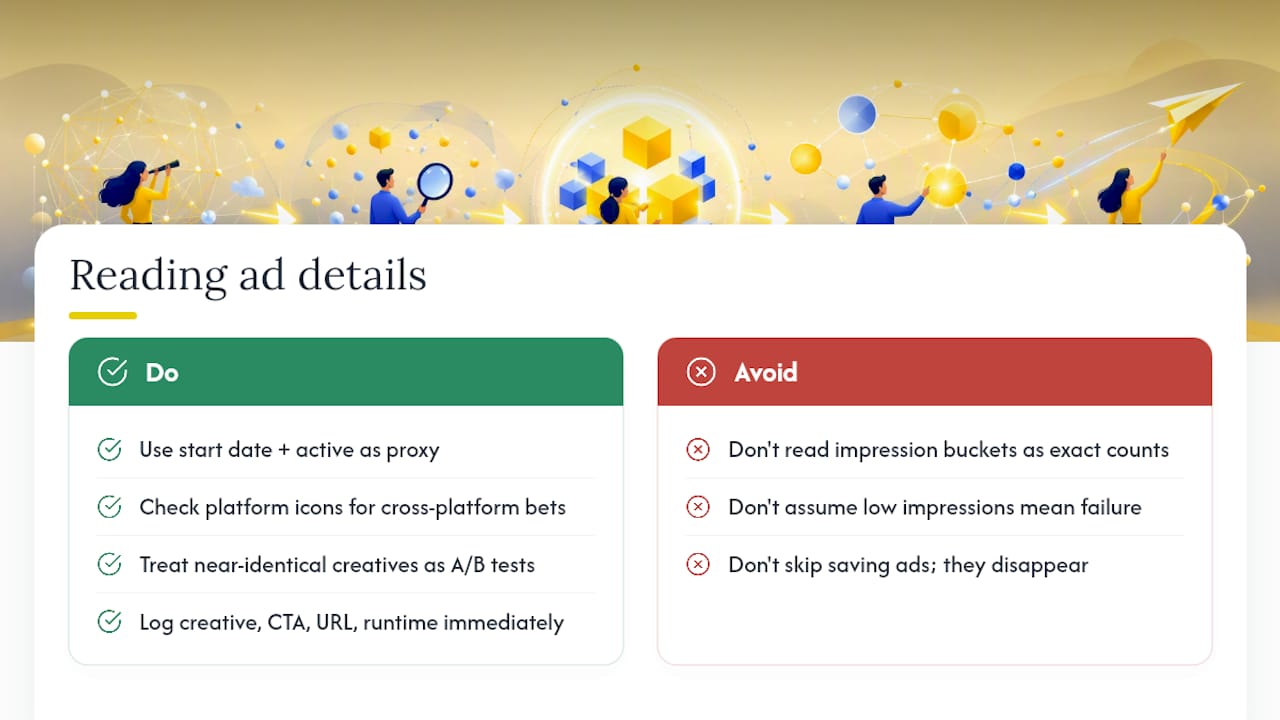
An ad’s detail view is a small dataset in disguise, and the fields carry more signal than most people extract on a first pass. The start date paired with active status tells you runtime, which is the single most useful proxy for creative performance you’ll get without access to the advertiser’s own dashboard. An ad that’s been live for eight weeks straight is an ad someone decided not to kill, and in paid social, surviving that long usually means it’s earning its budget.
Platform icons matter more than they look. If the same ad runs on Instagram and Facebook simultaneously, that’s a cross-platform bet. If you see near-identical creative with only the headline swapped, running at the same time, that’s an A/B test in progress, not two separate campaigns, and it tells you exactly what variable the advertiser is testing.
Impression-range buckets, rolled out as coarse tiers rather than exact counts, are where people over-interpret the data. A “100K to 1M” bucket is an order-of-magnitude signal, not a spend figure, and a “low impression” badge doesn’t mean the ad failed, it might just be newly launched or narrowly targeted. Treat these buckets as a sorting tool, not a scoreboard.
The most valuable habit here isn’t reading, it’s recording. Log the creative, CTA, destination URL, and runtime into a swipe file the moment you spot something worth testing. Ad Library data disappears once campaigns end outside the EU archive window, so the ad you don’t save today might be gone by the time you want it next month.
Practical ways to use the Ad Library for research and creative ideas
This is where the tool earns its place in a weekly workflow instead of a one-off competitive snapshot. Run through these in order and you’ll walk away with a real backlog, not just screenshots.
- Pull every ad from one advertiser. Open a competitor’s full library and look for repeated themes across their creative set. Patterns across ten ads tell you more about strategy than any single winner does.
- Search category keywords, not brand names. Typing your core offer (“meal delivery,” “invoice software”) surfaces every advertiser bidding on that language, which maps the messaging landscape faster than checking brands one at a time.
- Filter by country and platform to compare markets. The same brand often runs different hooks in different regions, and side-by-side comparison shows you which angle they trust where.
- Use runtime as a proxy for proven creative. Ads running for a month or longer have survived Meta’s own delivery optimization, which is a stronger signal than any hypothetical A/B test you could run cold.
- Check branded content for creator partnerships. Branded content is searchable separately in the library, and pulling those results builds you a ready-made list of influencers your competitors already trust.
- Harvest exact CTA and headline language. Copy the phrasing verbatim into your swipe file, not paraphrased, since the exact words are what you’ll test variations against later.
- Validate offers against your own landing pages. If three competitors all lead with a free trial and none with a discount, that’s a signal about what’s converting in your category right now.
- Watch ad velocity to detect campaign phases. A sudden jump from three ads to fifteen usually means a brand found a winner and is scaling variants, which is worth flagging before your own campaign competes for the same audience.
- Consolidate everything into a prioritized backlog. Rank swipe-file entries by runtime, format, and relevance to your own offer, so the next test you run isn’t a guess, it’s informed by what’s already working in the market.
Advanced tips, API notes, and pro tricks
Once the basics are automatic, a handful of tricks separate casual browsing from agency-grade research.
- Search the domain, not the brand. When a Page name is ambiguous, misspelled, or split across multiple regional Pages, searching the destination URL instead surfaces every ad pointing to that landing page, regardless of which Page ran it.
- Switch your country filter to an EU market. Because of EU transparency law, ads delivered there carry richer date ranges and archival history even for standard commercial campaigns, so this is the closest thing to a workaround for the archive limits elsewhere.
- Learn the Ad Library API’s core parameters. The API accepts up to 10-Page IDs per call and requires
ad_reached_countriesset to a specific code orALL, returning fields like creative text and snapshot URLs, which is enough to build lightweight programmatic monitoring without a full scraping stack. - Use third-party extensions carefully. Some browser extensions add export and bulk-filtering features on top of the native interface, but vet them before installing, since they run inside your browser session.
- Confirm feature availability before you rely on it. Impression buckets and some filters roll out unevenly by market, so what you see in one country’s interface may not exist yet in another.
Pro Tip: Save your top five competitor searches as bookmarked URLs with the filters baked in. Checking five saved links takes ninety seconds; rebuilding those filters from scratch every week adds up to hours over a quarter.
Turning Ad Library research into tests and client reports
Browsing the Ad Library without a workflow attached to it produces screenshots, not results. The fix is a five-step loop that agencies and in-house teams can run on a weekly cadence.
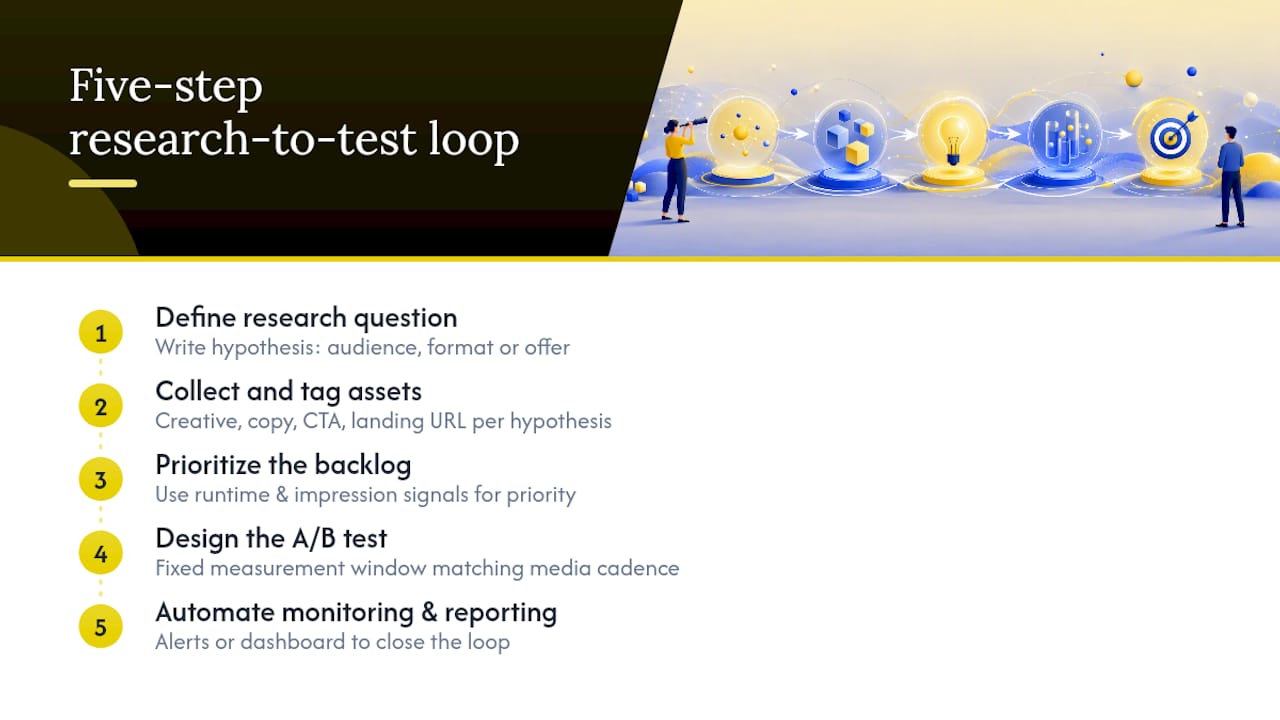
Start by defining the actual research question. Are you testing a new audience, a new format, or a new offer? Vague research produces vague swipe files, so write the question down before you open a single ad.
From there, collect and tag assets methodically: creative file, copy, CTA, and landing page URL, grouped by the hypothesis each one supports. A swipe file organized by “offer type” or “format” is searchable later; one that’s just a folder of screenshots isn’t.
Next, prioritize the backlog. Runtime and impression-range signals are your fastest filter, since an ad that’s survived weeks against Meta’s delivery algorithm deserves a higher test priority than something spotted once. This is the same logic behind a solid creative testing framework, where prioritization by expected ROI beats testing ideas in the order you found them.
Design the A/B test itself with a fixed measurement window, matching whatever cadence your paid media calendar already runs. And close the loop by automating the monitoring piece, whether that’s alerts when a tracked competitor launches new creative or a consolidated dashboard pulling signals across platforms, so the research doesn’t quietly stop the week you get busy.
What the Ad Library doesn’t tell you
The Ad Library is a research tool, not an analytics platform, and treating it like one leads to bad conclusions. Political and social-issue ads include extended archive and spend disclosure as required by law. Commercial ads carry neither guaranteed archive length nor exact spend figures, so any claim that a competitor “spent $50,000” on a campaign based on Ad Library data alone is a guess dressed up as a fact.
Impression counts come as ranges, not numbers, and those ranges are order-of-magnitude buckets rather than precise performance metrics. A long runtime is a reasonable heuristic for “this creative is probably working,” but it isn’t proof of ROI, since some ads run long because of automated bidding settings that have nothing to do with performance. EU markets show more data because of regulation specific to that region, not because Meta treats EU advertisers differently in some universal way. Keep that distinction in mind before you generalize a European finding to a US campaign.
Troubleshooting common problems and quick fixes
Most Ad Library frustrations trace back to the same handful of causes, and each has a fast fix.
- No results at all. Double-check the country filter first, since it’s the most common culprit. If that’s set correctly, try a domain search instead of the brand name, and toggle the language filter in case results are hiding behind a mismatch.
- Queries getting rate limited. Slow down manual searching, log in if you haven’t already, or move to API access if you’re running enough volume that manual browsing is the bottleneck.
- Historical ads seem to be missing. Switch the country filter to an EU market to check whether the archive simply isn’t retained in your original region.
- Uncertain how to weigh a “low impression” badge. Treat it as a deprioritization signal, not a disqualifier. A new ad with low impressions might scale next week; rank it lowers for now and revisit in a few days.
How Gleanit approaches Ad Library research day to day
We treat the Ad Library as the first stop in a loop, not a one-time lookup. Identify a competitor worth watching, capture their creative into a shared swipe file, tag it by format and offer, then prioritize what’s worth testing based on runtime and impression signals. That’s the same four-step shape covered in the research-to-action workflow above, just automated on our end so nobody’s manually rechecking the same ten Pages every Monday.
Automation is what turns this from a chore into a habit. Alerts fire when a tracked advertiser launches new creative. Swipe files consolidate automatically instead of living across five people’s screenshots folders. AI-generated reports turn raw findings into something a client can read in two minutes instead of a slide deck someone has to build by hand.
— Ovannes
Gleanit: automate ad capture, swipe files, and client reports
Manually rechecking the same twenty competitor Pages every week doesn’t scale past your third client, and it’s the part of Ad Library research most agencies quietly dread. Gleanit exists to remove that specific bottleneck: it automatically monitors ads across Meta, TikTok, Google, and LinkedIn, captures new creative into a shared swipe file the moment it goes live, and flags the format and offer changes worth acting on.
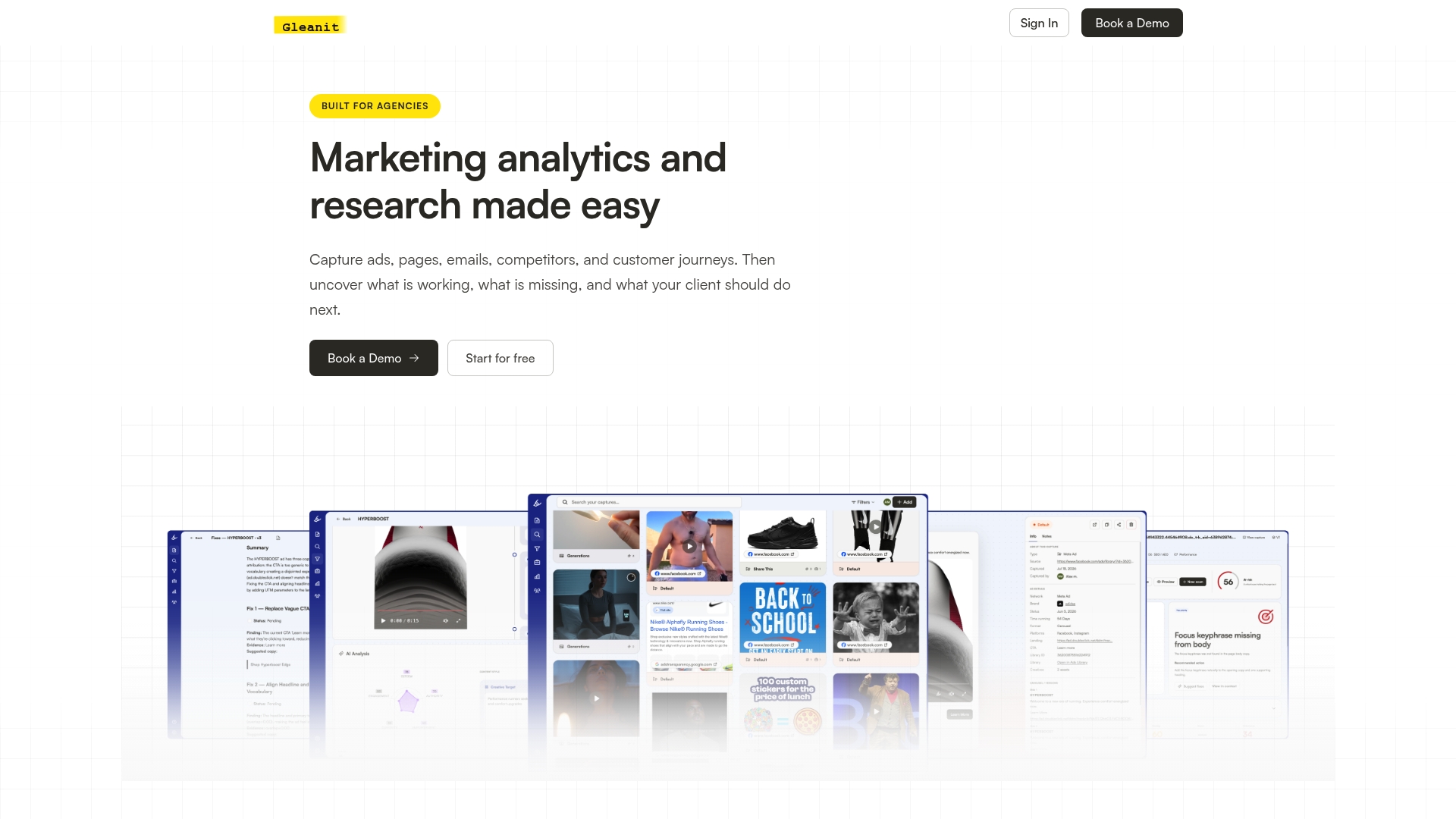
Agencies use it to stop paying an analyst’s hourly rate for work a dashboard can do continuously. Media buyers use it to catch a competitor’s new hook before it’s been live for a month. Consultants use it to hand clients a clean, AI-generated report instead of a folder of screenshots with no context attached. Everything from a solo media buyer’s workspace to a multi-client agency setup runs through one connected view, with new features shipping weekly rather than sitting on some annual roadmap.
If you’re already running the workflow this guide describes by hand, start a trial with Gleanit and see how much of it disappears into the background.
Sources
- Meta Ad Library tools | Transparency Center
- How to Use the Facebook Ad Library? How to Find & Research Competitor Ads in 2026 — Neil Patel
- Meta Ads Library (Facebook Ad Library): The Complete 2026 Guide — AdsUploader
Recommended
- The LinkedIn Ad Library Guide Every Marketer Needs
- A Creative Testing Framework That Actually Scales Ad Results
Corrections: ovannes@hearye.co or our editorial policy.