
The LinkedIn Ad Library is a free, public archive of every sponsored ad running on LinkedIn, and it is the fastest way to map what your competitors are actually saying to their audience right now. If you manage campaigns or run client accounts, open it today and run one search before you do anything else.
Here is the three-step version:
- Go to Linkedin and pick a search mode.
- Search by advertiser name or a keyword phrase tied to your category.
- Flag three ads that represent the dominant messaging pattern you see, and save the permalinks.
What you’ll find: creative, ad copy, the paying entity’s name, and run dates. What you won’t find: spend, click-through rate, or conversion data on any ad outside the European Union.
- Expect creative and copy, not campaign math.
- Expect a rolling window of ads, not a permanent record of everything ever run.
- Expect payer names that sometimes reveal an agency, not just the brand.
Key Takeaways
The LinkedIn Ad Library gives marketers free access to competitor creative and copy, but turning that access into campaign wins requires a repeatable research workflow, not just occasional browsing.
| Point | Details |
|---|---|
| Start with one search | Search an advertiser or keyword today and save three ads that show the dominant messaging pattern. |
| Know the metric gap | The library shows creative and copy but never spend, CTR, or conversions outside the EU. |
| Use the five-step workflow | Discover, collect, categorize, prioritize, and brief findings within 60 to 90 minutes for a first audit. |
| Treat longevity as a signal, not proof | A long-running ad suggests investment, not confirmed performance. |
| Scale with Gleanit | Gleanit automates cross-platform ad monitoring so agencies can turn one-off audits into recurring client reports. |
Table of Contents
- What Is the LinkedIn Ad Library and Why Marketers Rely on It
- How Do You Access the LinkedIn Ad Library?
- Which Search Filters Actually Help You Find the Right Ads?
- What Does the Ad Library Actually Show, and What Does It Hide?
- A Step-by-Step Method to Audit Competitor Campaigns
- How Do You Estimate Budget and Scale From Limited Metrics?
- What Should You Look For When Analyzing LinkedIn Ad Creative?
- How Do You Monitor Ad Library Findings at Scale?
- How Do You Find and Protect Your Own Company’s Ads?
- Quick Wins and Common Mistakes to Avoid
- Limitations and Ethical Guardrails to Keep in Mind
- How Agencies Should Actually Operationalize This
- Turn Ad Library Research Into a Standing Client Deliverable
- Frequently Asked Questions
- Sources
What Is the LinkedIn Ad Library and Why Marketers Rely on It
The LinkedIn Ad Library is a searchable, public archive of sponsored content that ran on LinkedIn, built under EU transparency requirements and covering ads that ran from June 1, 2023 onward. Every ad stays visible for one year after its last impression, according to LinkedIn’s own help documentation. No login is required to browse it, and there is no cost to search.
For a media buyer or agency strategist, that means you can pull up a rival’s current campaign, see the exact headline and creative they are running, and cross-reference it against your own account without asking anyone’s permission.
The practical use cases stack up fast:
- Competitor messaging mapping: pull every active ad from a named account and lay out the recurring claims.
- Creative inspiration: study format choices (document ads, single image, video) that a category leader is investing in.
- Partner vetting: check whether an agency or freelancer’s portfolio claims match what actually ran.
- Offer and CTA inventory: catalog which promotions and calls to action a market is testing this quarter.
The limitations matter just as much as the features. Outside the EU, you get zero spend, CTR, or conversion figures, and full targeting detail is an EU-only feature. Combine that with the one-year retention window and you have a tool built for messaging research, not performance benchmarking, a distinction Impactable’s analysis makes clear. Treat it as a window into what a brand is saying, not proof of how well it is working.
How Do You Access the LinkedIn Ad Library?
There are two practical routes in, and each fits a different research task.
Route A: The direct search interface. Head to the Ad Library search page and you can query across every advertiser on the platform at once. This is the route for keyword discovery: type in a product category, an offer phrase, or a pain point, and see which accounts are bidding on that language. It is also the only route for cross-advertiser comparison, since you are searching the whole platform rather than one brand.
Route B: A company page’s Ads tab. Visit any LinkedIn company page and, if that organization is currently running sponsored content, an Ads tab appears alongside Posts and About. This is faster for a single-advertiser spot check, useful when you already know exactly whose account you want to audit and don’t need to search broadly.
A few shortcuts worth building into your habits:
- Search by payer name, not just brand name, since agency-funded campaigns sometimes list the agency as the paying entity rather than the client.
- Try generic phrases like “free trial” or “book a demo” instead of a company name to surface advertisers you didn’t know were active in your category.
- Search a product feature phrase in quotes to find every advertiser using nearly identical copy, a fast way to spot a trend before it becomes obvious.
One timing note that trips up first-time users: a newly launched ad typically appears in the library within 24 to 48 hours of its first impression, per LinkedIn’s help notes, not instantly. If a competitor just launched something and it’s not showing up yet, check back the next day before assuming they pulled it. And remember the one-year retention rule cuts both ways: ads that stopped running more than twelve months ago are gone, so if you spot something worth tracking, save it now.
Which Search Filters Actually Help You Find the Right Ads?
Filtering well is the difference between a useful ten-minute audit and an hour of scrolling through irrelevant creative. The global filters available to every user are advertiser name, keyword, country, date range, ad format, and language.
If you’re researching from an EU vantage point, or looking at ads targeted to EU audiences, you get two additional layers that non-EU searches don’t show: impression range brackets and a view into the targeting parameters an advertiser selected, including job function, seniority, industry, and geography, as AffRoom’s 2026 guide details.
A few query tactics worth trying immediately:
- Search a phrase from your own ad copy in quotes to see if a competitor is running something nearly identical.
- Search the payer name field when you suspect an agency is running the account, since the paying entity and the visible brand aren’t always the same.
- Combine a keyword with a country filter to catch localization differences a brand-only search would miss.
| Filter | Best used for | Example query |
|---|---|---|
| Advertiser name | Fast single-brand audit | “Acme Software” |
| Keyword | Category-wide discovery | “AI reporting tool” |
| Country | Localization checks | Keyword + Germany |
| Date range | Isolating a launch window | Last month |
| Ad format | Studying creative strategy | Document ads only |
Pro Tip: Run the same keyword search across three neighboring countries back to back. Messaging that stays identical across markets usually signals a lean team or a global template; messaging that shifts tone or offer by country usually signals a more mature localization strategy worth studying closely.
What Does the Ad Library Actually Show, and What Does It Hide?
Every search returns a consistent set of fields regardless of where you are searching from: the creative itself, headline, body copy, the advertiser’s identity, the payer name, ad format, run dates, and the region the ad targeted.
If your search covers EU-targeted ads, three additional fields unlock: impression range brackets, the top targeting parameters the advertiser chose, and legal entity details behind the account. That EU layer is genuinely useful for estimating scale, and it simply doesn’t exist for ads run outside that jurisdiction.
Here’s what stays hidden no matter where you search, based on Impactable’s breakdown and AffRoom’s field-level review:
- Spend, at any level of granularity.
- Click-through rate or any engagement metric.
- Conversions or downstream funnel performance.
- Sequence context, meaning you can’t tell if an ad is top-of-funnel awareness or a retargeting close.
- Exact audience size outside the EU.
That gap has a real consequence for how you should interpret findings: ad longevity becomes your best available proxy for performance, but it’s a noisy one. A campaign might run for months because it converts well, or simply because nobody on the client side noticed it was underperforming and turned it off. Treat longevity as a signal worth investigating, not a verdict.
Since the library doesn’t let you export a permanent record, save your own. Screenshot the ad and copy the permalink URL the moment you find something worth tracking. That habit alone saves hours of frustration three months from now when the ad has aged out of the one-year window.
A Step-by-Step Method to Audit Competitor Campaigns
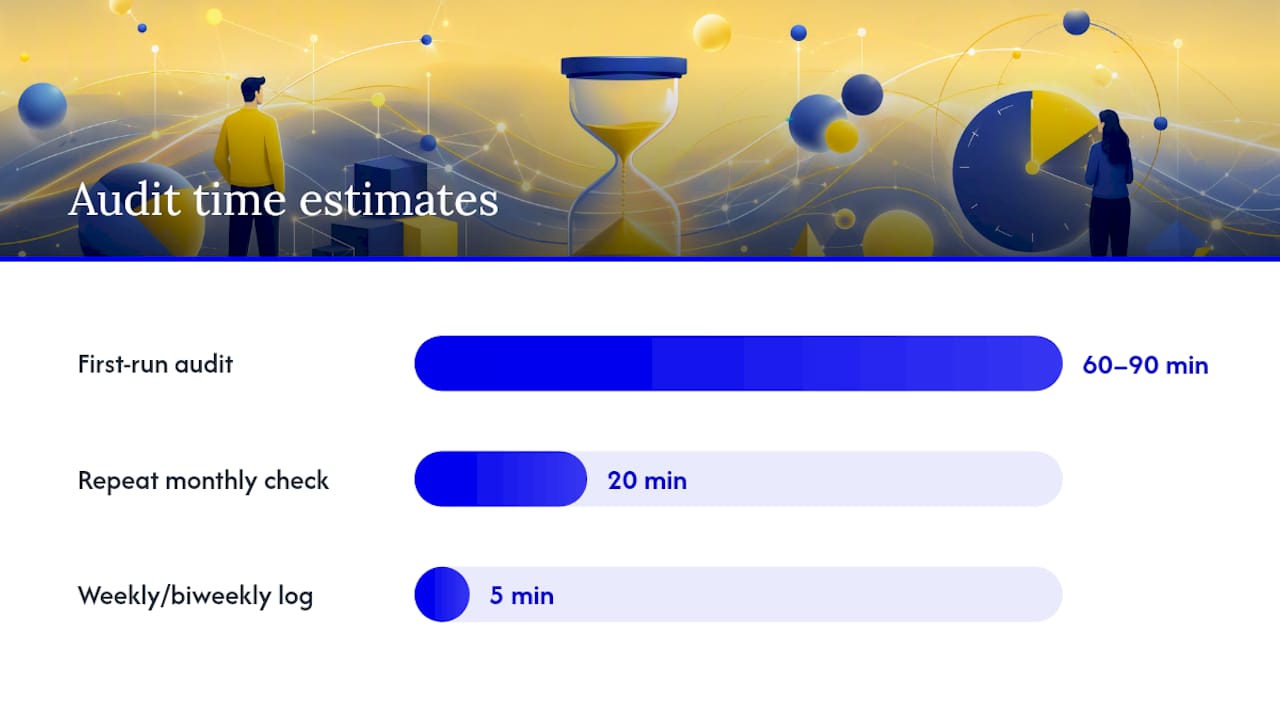
A one-off search gives you a snapshot. A structured audit gives you something you can hand to a creative team and act on. Here is a five-step workflow built for a first-run audit of 60 to 90 minutes, with a lighter 20-minute version for repeat monthly checks, a cadence SpiderAF’s competitor-research guide recommends for active categories.
- Discover. Search the advertiser directly, then run two or three adjacent keyword searches to catch competitors you didn’t think to name. Spend ten minutes just casting the net wide.
- Collect. Save the permalink and a screenshot for every active ad from your target accounts. Don’t filter for quality yet, just gather everything currently live.
- Categorize. Sort what you collected by format (document, single image, video, carousel), by offer type (free trial, demo, gated content, discount), and by funnel stage if the copy gives you a clue.
- Prioritize. Not every finding deserves a response. Weigh each ad against a simple matrix: how long has it run, how unusual is the offer, and how much audience overlap exists with your own account.
- Brief. Turn the top three to five findings into a one-page brief your creative team can act on this week, not a research deck nobody reads.
A research brief that actually gets used has a consistent shape. Build yours around these fields every time:
| Field | What to capture |
|---|---|
| Advertiser | Company and payer name if different |
| Date range observed | When the ad first appeared and last seen active |
| Active ad count | How many variations are currently running |
| Dominant format | Document, image, video, or carousel |
| Main claims | The two or three recurring value propositions |
| Offer | Free trial, demo, discount, gated asset |
| CTA language | Exact button or link text used |
| Landing page pattern | Where the ad sends traffic and what it asks for |
The prioritization matrix is where most audits fall apart, because everything looks interesting on a first pass. Weight three factors against each other: message longevity (an ad running four months has earned some trust from the advertiser), offer rarity (a discount nobody else is running is worth testing fast), and audience overlap (an EU search that reveals the advertiser is targeting your exact seniority and industry combination deserves more attention than one targeting a completely different buyer).
Document everything the same way, every time. Save permalinks in a shared spreadsheet with the date captured, since the library’s one-year window means today’s find could vanish by next quarter. A weekly or biweekly save cadence, even just five minutes logging new discoveries, beats a quarterly scramble to reconstruct what you saw months ago. Hand the finished brief to your creative team in whatever format they already use, whether that’s a shared doc, a Notion page, or a Slack thread, so the research doesn’t die in a folder nobody opens again.
How Do You Estimate Budget and Scale From Limited Metrics?
The library won’t hand you a spend figure, but EU-targeted ads give you impression range brackets, and those brackets are enough to build a rough estimate if you know how to read them.
Say an ad shows an impression bracket alongside a four-month run date. That combination tells you the advertiser has sustained a meaningful reach over a real stretch of time, which is a different signal than an ad that’s been live for six days. You can’t convert that into an exact dollar figure, but you can rank advertisers relative to each other by cross-referencing bracket size against run length.
A simple template formula for your spreadsheet: take the run length in weeks, multiply it against how many creative variations you counted in step two of your audit, and use that number as a rough “commitment score” to rank advertisers against each other rather than an absolute spend figure. An advertiser running eight variations over twelve weeks is investing more heavily than one running two variations over the same window, even without a dollar amount attached.
- Longer runs suggest sustained budget commitment, not necessarily better performance.
- A sudden burst of new creative variations often signals a fresh test cycle or a seasonal push.
- Frequent creative refreshes (new ads every two to three weeks) usually indicate an active optimization team, while a single ad running unchanged for months might just mean nobody’s watching that account closely.
Treat longevity as one input, not a conclusion. As Impactable notes, the biggest risk is over-reading a single metric that was never designed to measure performance in the first place.
What Should You Look For When Analyzing LinkedIn Ad Creative?
Every high-performing ad you find in the library breaks down into the same handful of components, and training yourself to spot them fast turns browsing into actual research.
Run this checklist against every ad worth a second look:
- Headline pattern: is it a question, a stat, a direct claim, or a pain-point statement?
- Value proposition: what’s the one thing this ad promises, stripped of adjectives?
- Credibility proof: client logos, a specific statistic, a review count, an award badge.
- Offer type: free trial, demo call, gated report, discount, or straight brand awareness.
- CTA language: the exact words on the button, not a paraphrase.
- Visual style: photography, illustration, screenshot, or founder-facing video.
- Format choice: document ads (LinkedIn’s native slide-deck format) tend to perform well for educational content, while single image often wins for direct-response offers.
Once you’ve logged findings across five or six competitor accounts, three micro-test hypotheses usually fall out naturally:
- Headline swap: if three competitors lead with a stat and you lead with a question, test a stat-led variant against your current control.
- Offer swap: if the category has shifted from gated PDFs to live demos, test a demo CTA against your existing gated asset.
- Format swap: if document ads dominate a category you’ve only run in single image, build one and test it head to head.
For document ads specifically, capture each slide as you’d capture a landing page: note the hook slide, how many slides before the CTA appears, and whether the deck front loads a stat or builds to one.
Pro Tip: When the same claim shows up across four or five unrelated advertisers in your category, that’s not a coincidence, it’s the market telling you what buyers respond to. The real opportunity usually sits one layer beneath that claim, in the specific proof point or angle nobody’s bothered to differentiate on yet.
How Do You Monitor Ad Library Findings at Scale?
A single audit answers today’s question. Recurring monitoring answers next quarter’s, and that’s where most agencies fall short, because manual checks don’t scale past two or three client accounts.
Your options run on a spectrum:
- Manual checks: fine for one or two accounts, checked weekly, using saved searches and a shared spreadsheet.
- Bulk export tools: field-level extraction of advertiser name, headline, ad copy, CTA text, and format, an approach Jaybird Technologies documents for scaled review, though any bulk or scraping approach needs to respect LinkedIn’s terms of service.
- Platform-integrated monitoring: automated capture that sits across LinkedIn alongside Meta, TikTok, and Google, which is where a tool like Gleanit fits for agencies managing more than a handful of client competitor sets at once.
For a weekly reporting template, keep it simple: one row per new ad discovered, columns for advertiser, format, offer, and date first seen, with a “flagged for review” column your strategists check off.
Set alerts for three specific triggers: a creative that’s been running unusually long for that category, a sudden spike in offer aggressiveness (a discount deeper than the category norm), or a payer name change that suggests an agency switch on a competitor account.

How Do You Find and Protect Your Own Company’s Ads?
Auditing your own presence in the library matters as much as watching competitors, especially if you work with multiple freelancers or agency partners who might be running campaigns under your brand.
- Visit your own company page and check the Ads tab for everything currently live.
- Search the library directly by your company name and separately by any agency partner’s name, since campaigns sometimes run under a different payer.
- Save permalinks for your active ads as a running record, since the library itself won’t archive them past twelve months.
Run a quick audit checklist against what comes back: does the payer name match who you expect to be running the account? Does the creative match what you approved? Do landing pages route where they should, and do the claims in the copy match what’s actually true about your product?
If you spot a payer name you don’t recognize, or creative making claims you never approved, that’s a brand-safety issue worth escalating immediately. LinkedIn’s Help Center outlines reporting steps for misleading or unauthorized ads. Internally, a simple response playbook helps: audit first, loop in legal if the issue involves misattribution or false claims, and consider creative watermarking for high-value campaign assets going forward.
Quick Wins and Common Mistakes to Avoid
A few habits separate researchers who get value from the library fast from those who spend an hour and walk away with nothing usable.
Do this:
- Combine keyword and country filters together rather than searching either alone.
- Capture the top three recurring claims across a category before you build anything new.
- Check payer names on every ad that looks unusually polished, since it often reveals agency involvement.
Don’t do this:
- Don’t assume a long-running ad automatically means it’s the top performer in that account.
- Don’t treat EU-only targeting data as available everywhere, since it isn’t.
- Don’t assume the library shows you funnel sequence or which ad a prospect saw first.
The single most common pitfall is over-interpreting EU-only data as a global standard. A researcher who gets used to seeing impression brackets on EU searches and then assumes every advertiser’s reach is visible will badly misjudge scale the first time they research a US-only account.
Limitations and Ethical Guardrails to Keep in Mind
The library has real boundaries worth respecting, both practically and legally.
- The one-year retention window means anything older is simply gone, with no archive to request.
- Full targeting detail and impression brackets exist only for EU-targeted ads.
- There’s no spend, CTR, or conversion data published anywhere in the tool, for any advertiser.
- There’s no public real-time API for bulk consumption, so any automated extraction approach needs to respect LinkedIn’s terms of service rather than scrape around them.
Pro Tip: Never treat Ad Library findings as your only evidence for a campaign decision. Pair what you find here with your own analytics, a handful of win/loss interviews, and a small first-party test before committing real budget to a hypothesis built entirely on someone else’s public creative.
How Agencies Should Actually Operationalize This
The mistake most teams make is treating a competitor audit as a one-time deliverable instead of a standing product. A single snapshot goes stale within weeks, especially in high-velocity B2B categories where creative refreshes monthly.
Run Ad Library research monthly for fast-moving categories and quarterly for stable, low-churn ones. Split the work by role: a researcher handles discovery and logging, a strategist turns findings into briefs. That division keeps the work moving without your best strategic thinker stuck doing manual searches all week.
Where this compounds is in the handoff. A team using Gleanit to track ad activity across LinkedIn alongside Meta and Google can turn a monthly manual audit into a standing report clients see without anyone rebuilding the spreadsheet from scratch every time.
Turn Ad Library Research Into a Standing Client Deliverable
Manual Ad Library audits work, until you’re running them across ten client accounts and three platforms at once. That’s the point where Gleanit earns its keep: automated ad capture across LinkedIn, Meta, TikTok, and Google in one connected view, with funnel gap diagnostics and prioritized fixes built in instead of a folder of screenshots someone has to interpret by hand.
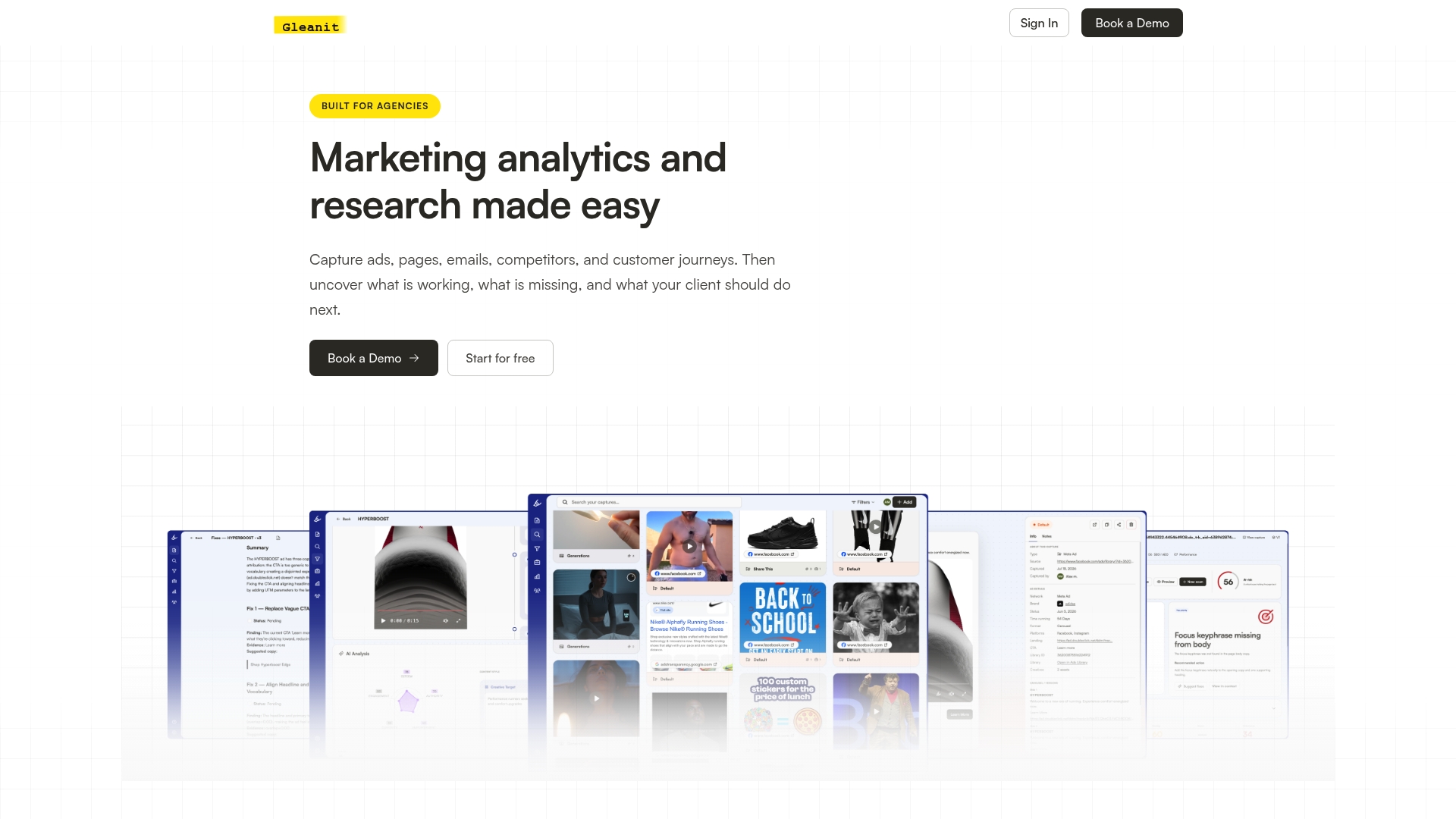
Agencies use Gleanit to replace the weekly manual check with a monitoring workflow that flags new competitor creative, tracks message longevity, and turns findings into AI-generated reports clients actually read. New features ship weekly, so the tool keeps pace with how fast LinkedIn’s ad landscape shifts. If a monthly competitor audit is already part of your retainer work, try Gleanit and see how much of that manual research it can take off your plate.
Frequently Asked Questions
Is the LinkedIn Ad Library free to use? Yes. It’s a free, public tool that requires no LinkedIn account or login to search.
How far back does the LinkedIn Ad Library go? It covers ads that ran from June 1, 2023 onward, and each ad stays visible for one year after its last impression, per LinkedIn’s help documentation.
Can I see how much a competitor spent on a LinkedIn ad? No. Spend data isn’t published anywhere in the library, for any advertiser, in any region.
Does the LinkedIn Ad Library show targeting details? Only for ads targeted to the European Union, where you can see impression range brackets and top targeting parameters like job function, seniority, and industry.
How do I find ads run by a specific company? Visit their company page and check the Ads tab, or search their name directly in the Ad Library search interface for a broader view across formats.
How long after launch does a new ad appear in the library?
Sources
- LinkedIn’s Ad Library
- LinkedIn Ad Library: What It Shows and Hides | Impactable
- LinkedIn Ads Library Guide in 2026 | AffRoom
- LinkedIn Ads Library: The Complete 2026 Guide to Competitor Research | Spider AF
Recommended
Corrections: ovannes@hearye.co or our editorial policy.