
For a plain offline archive, use Chrome’s built-in Save Page As to download the HTML. For a pixel-accurate visual record, use the DevTools full-page screenshot tool. For an ongoing swipe file or a folder of dozens of competitor pages, a single-file archiver extension does the heavy lifting. Each trades something: HTML keeps text and links but can break visually, screenshots look perfect but aren’t searchable, and archivers add convenience at the cost of trusting a third-party tool.
TL;DR:
- Saving pages as “Webpage, Complete” in Chrome requires selecting the correct option and working online to ensure all assets load properly.
- Full-page screenshots from DevTools provide a pixel-perfect visual copy but do not include interactivity or searchable content.
- Third-party extensions are useful for bulk captures, but should be tested for compatibility with JavaScript-heavy pages and checked for recent updates.
- Before saving, manually scroll and expand hidden sections to ensure complete rendering, then test saved files offline for accuracy.
- Saving both HTML and PNG or PDF files ensures access to editable content and accurate visual records for legal or presentation purposes.
Table of Contents
- How to Save Landing Pages in Chrome: A Quick Method Breakdown
- How Do I Save an Entire Page in Chrome?
- How Do You Capture a Full-Page Screenshot in Chrome DevTools?
- Should You Use a Browser Extension for Bulk Page Captures?
- What’s the Checklist Before and After You Save a Page?
- HTML or Image: Which Format Actually Fits Your Goal?
- A Simple Capture Routine That Scales
- Turn Saved Pages Into Faster Client Reports
- Sources
- FAQ
How to Save Landing Pages in Chrome: A Quick Method Breakdown
Before picking a tool, know what each one actually produces. Chrome’s native Save Page As downloads a full HTML file (plus a folder of assets like images and stylesheets) that opens in any browser without an internet connection. It’s fast, requires no extension, and works for most static or lightly interactive pages.
The Reading List is a different animal entirely. It bookmarks a live URL for later, but it isn’t a downloaded archive. If the page changes or goes offline, your reading list entry breaks with it. Google’s own Chrome support documentation draws this line clearly: reading later and saving offline are two separate workflows, and only one of them survives without an internet connection.
DevTools full-page screenshots capture exactly what’s rendered, pixel for pixel, as a PNG. Nothing is selectable or clickable in the output, but nothing about the layout is left to guesswork either.
Beyond those two, third-party extension categories fill specific gaps:
- Single-file HTML archivers bundle an entire page (CSS, images, fonts) into one portable file.
- Screenshot editors add annotation and cropping on top of a basic capture.
- Page archivers or “rippers” save organized folders of assets for bulk or repeated captures.
Fidelity, interactivity, file size, and portability rarely max out together. Pick two.
How Do I Save an Entire Page in Chrome?
The fastest path to a downloadable archive uses Chrome’s built-in tools, no extension required.
- Open the landing page you want to capture and let it fully load.
- Click the three-dot menu in the top right corner.
- Go to Cast, save, and share, then select Save page as… (on some Chrome versions this sits under More tools > Save page as).
- Choose Webpage, Complete from the file-type dropdown, not “Webpage, HTML only,” or you’ll lose images and styling.
- Pick a destination folder and click Save.
You have to be online for this to work. Chrome pulls in the page’s assets at the moment of saving, and Google’s support page confirms that server-side and interactive features may not survive the trip offline. A page that loads content dynamically through JavaScript after the initial render can save incomplete.
If images or fonts go missing after saving, check whether the “Complete” option was actually selected. It’s easy to accidentally pick HTML-only from the dropdown. Google’s general download guidance also recommends choosing a dedicated folder rather than letting saves pile into your default Downloads directory, which makes the next step, testing the file, far easier.

How Do You Capture a Full-Page Screenshot in Chrome DevTools?
When you need an exact visual copy rather than an editable archive, DevTools does it in seconds.
- Open the landing page, then press F12 or right-click and select Inspect to launch DevTools.
- Open the Command Menu with Ctrl+Shift+P on Windows or Cmd+Shift+P on Mac.
- Type “screenshot” and choose either Capture full size screenshot or Capture area screenshot.
- Chrome saves the result as a PNG file to your downloads folder.
This works through the same Command Menu documented by Chrome for Developers, and the DevTools blog covers additional modes, including node-specific and mobile-viewport captures. PNG output is best for sharing in a slide deck or report. Converting to PDF makes sense when you’re printing a page or attaching it to a formal audit document. Either way, remember the image preserves appearance only. Nothing in it is searchable or selectable, and scripts, forms, and third-party API calls behind the page don’t travel with the screenshot.
Should You Use a Browser Extension for Bulk Page Captures?
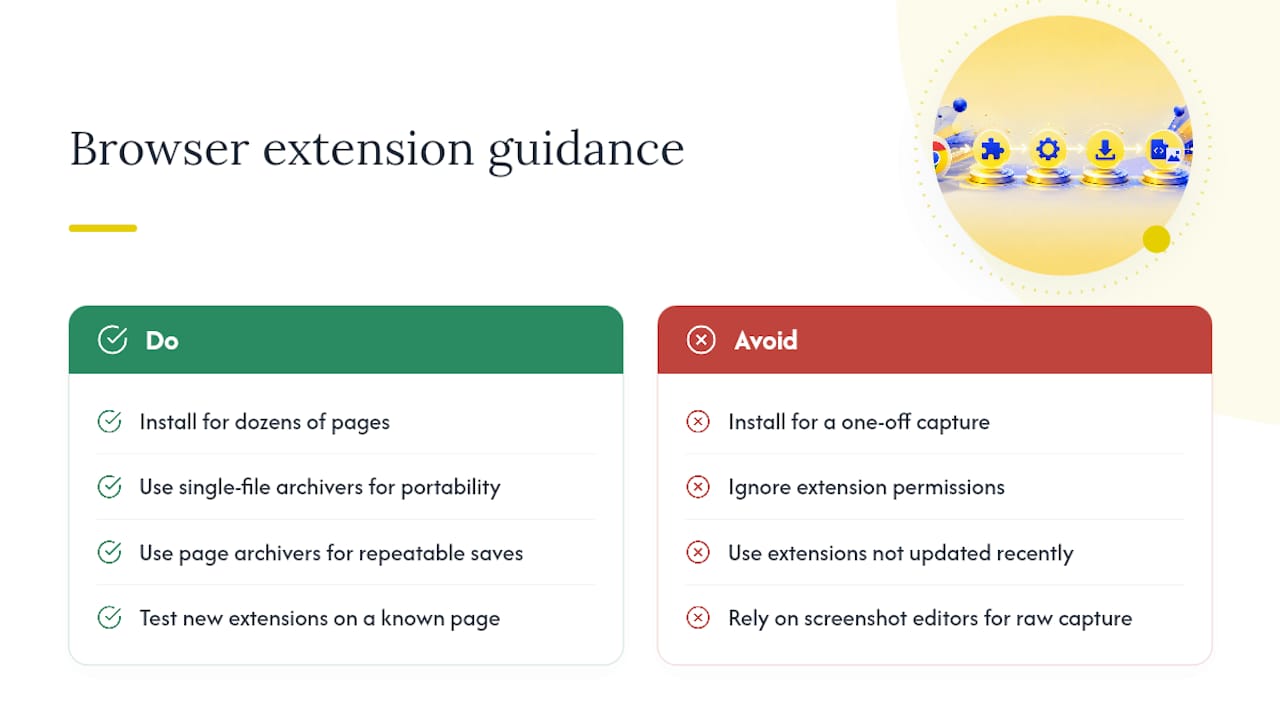
Extensions earn their place when you’re capturing dozens of landing pages a week, not just one.
Single-file archivers bundle a page’s HTML, CSS, images, and fonts into a single portable file. They’re worth installing when you need to move captures between machines or send them to a client without a folder of loose assets trailing behind. Screenshot editors matter less for raw capture and more for what happens after: cropping, annotating, or blurring sensitive data before a screenshot goes into a report. Page archivers, sometimes called rippers, are the right call when you’re running a repeatable research process and want every capture saved into the same organized folder structure automatically, rather than renamed and sorted by hand.
Before installing anything, check the extension’s permissions. Google’s Chrome Web Store policies note that permissions and update frequency vary widely between listings, and that’s exactly what to scrutinize. An extension asking to “read and change all your data on all websites” for a tool that just saves pages is worth a second look. Check the last update date, too. An archiver that hasn’t shipped an update in two years may quietly break on modern JavaScript-heavy landing pages.
If you’re deciding whether a landing page even needs a full multi-section capture or just a single clean screenshot, it often comes down to page structure. A single scrolling page behaves differently than a multi-page site when it comes to what “complete” capture actually means.
Pro Tip: Test any new archiver extension on a page you already know well. If it mangles a layout you can spot from memory, you’ll catch the failure immediately instead of finding out three months later when you need that capture for a client report.
What’s the Checklist Before and After You Save a Page?
Most botched captures fail for the same reason: the page wasn’t fully rendered when it got saved.
- Accept or dismiss cookie banners first. A capture with a cookie overlay frozen across the hero section is useless.
- Scroll the entire page slowly. Lazy-loaded images, carousels, and videos often don’t render until they enter the viewport, so a quick scroll-through before saving matters more than most people realize.
- Expand accordions or hidden sections if the landing page hides pricing tables or FAQ content behind a click.
- Name the file consistently. A format like
brand_page_viewport_20260315keeps months of captures searchable later. - Test the saved file offline. Open it in a private browsing window with your network disconnected, then confirm images, fonts, and navigation anchors loaded correctly.
- Note what didn’t survive. Login-gated content, live chat widgets, and third-party API calls commonly break in a saved archive; write that down while you remember why.
This rendering-first approach comes directly from how tools that generate complete single-file archives recommend preparing a page, and it applies whether you’re using an extension or Chrome’s own Save Page As.
HTML or Image: Which Format Actually Fits Your Goal?
Match the file type to what you’ll do with it later, not to whatever’s fastest in the moment.
- Choose HTML when you need selectable text, working links, or the ability to inspect the page’s structure later, useful for competitive research where you’ll quote copy or check element layout.
- Choose PNG or PDF when the goal is a faithful visual record you can drop into a slide deck, a client report, or a legal file without worrying that a broken stylesheet changed the layout.
- Save both for audits, swipe files, or anything with legal or compliance weight. HTML appearance can shift the moment an external asset fails to load, so a linked screenshot backs it up as visual proof, a practice the DevTools team itself recommends for research work.
Agencies building out an ad swipe file tend to standardize on this dual-artifact habit early, mostly because the alternative, re-capturing a page that’s already changed, wastes more time than saving twice up front.
A Simple Capture Routine That Scales
My own routine is boring on purpose: save the HTML, capture a full-page PNG, name both files the same way, and drop a one-line note about anything that didn’t render correctly. That’s it. The discipline isn’t in the tools, it’s in doing the same four steps every time so nothing gets lost between capture number three and capture number thirty.
Where this gets genuinely faster is after the capture, when that saved page feeds into an audit workflow instead of sitting in a folder untouched.
— Ovannes
Turn Saved Pages Into Faster Client Reports
Capturing landing pages manually works fine at low volume. It breaks down once you’re tracking competitor funnels across a dozen accounts, because a folder of PNGs and HTML files doesn’t flag what actually changed or where the drop-off is happening. Some marketing analytics platforms monitor ads and landing pages across multiple platforms automatically, then surface funnel gaps worth fixing instead of leaving users to eyeball screenshots for differences.
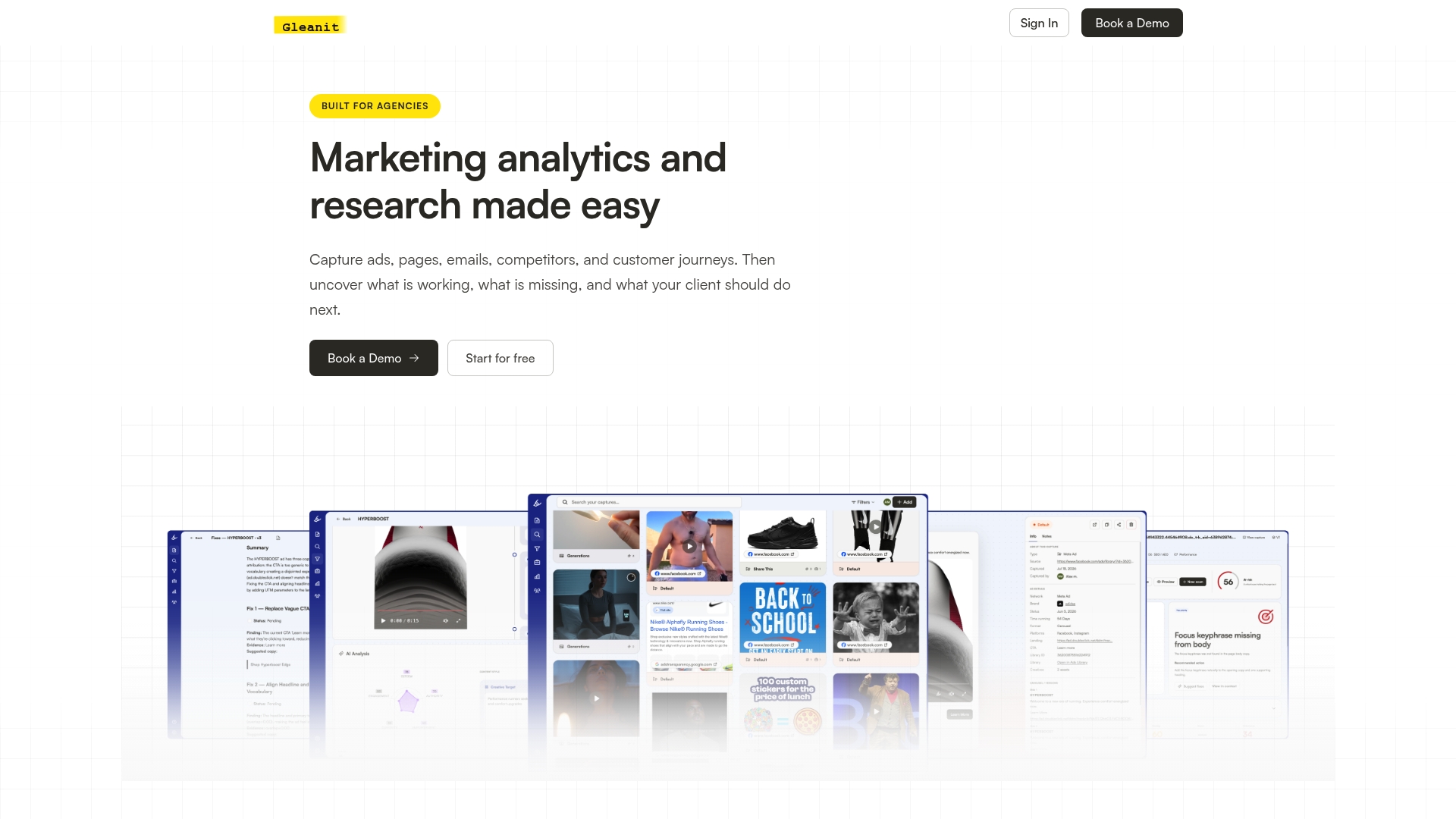
If you’re already saving landing pages for competitor research, start with the free landing page audit and see what it flags on a page you know well. Teams running this at agency scale typically move to the Agency plan, which adds client workspaces so every capture and audit lives in one connected view instead of scattered folders.
Sources
These workflows come straight from Chrome’s own documentation rather than guesswork:
- Read pages later & offline - Computer - Google Chrome Help
- Run commands in the Command Menu | Chrome DevTools | Chrome for Developers
FAQ
How Do I Save Pages in Chrome?
Open the page, click the three-dot menu, then go to Cast, save, and share > Save page as, choose “Webpage, Complete,” and pick a folder. This downloads a full HTML archive you can open offline afterward.
What Is Ctrl+K in Chrome?
Ctrl+K opens Chrome’s omnibox search shortcut for typing a search query directly, separate from the address bar’s URL function. It has nothing to do with saving or capturing pages; that workflow lives under the three-dot menu or DevTools Command Menu instead.
How Do I Save an Entire Page in Chrome?
Use Save Page As with “Webpage, Complete” selected to grab the HTML, images, and stylesheets together. For a purely visual copy, use the DevTools Command Menu (Ctrl/Cmd+Shift+P, then type “screenshot”) and choose full-page capture instead.
How Do I Save My Home Page in Chrome?
Saving a home page works the same as any other landing page: open it, use Save Page As for an HTML archive, or run a DevTools full-page screenshot for a visual copy. If you just want quick access rather than an offline file, adding it to the Chrome Reading list works too, though that only bookmarks the live URL rather than downloading it.
Does Gleanit Save Landing Pages Automatically?
Gleanit monitors landing pages and ad creative continuously across platforms like Meta, TikTok, and Google rather than requiring a manual save each time. The free landing page audit shows how that automated capture and analysis works on a page of your choice.
Recommended
- 2 Minute Capture Routine to Build an Ad Swipe File Agencies Use
- Monitor Meta Ads in 10 Minutes: 2026 Automation First Workflow for Agencies
- Google Ads Competitor Research: A Practical Workflow for Marketers
- Monitor Google Ads: A Practical Checklist for Marketers
Corrections: ovannes@hearye.co or our editorial policy.