
The fastest way for marketing teams to produce campaign assets is to standardize templates in Figma Buzz, use bulk create to scale variants, and run approvals inside the same workspace. Teams that adopt this combination cut production time and reduce the back and forth that usually stalls a launch. Pair the asset pipeline with FigJam for early ideation and the result is fewer revision cycles and a brand that looks consistent across every channel.
TL;DR:
- Build a separate template for each format, name editable layers to match CSV or XLSX headers, and lock logos, fonts, and colors.
- Test three to five spreadsheet rows, including the longest headline and product name, before generating the full batch to catch overflow, cropping, or broken locks.
- Require approvals that block export for paid media or legally reviewed copy; assign copy, brand, and compliance checks in defined steps.
- Use one approved plugin for each task, and check its external data sharing and API permissions before installation because campaign files may contain unreleased details.
- Keep approved assets on a dedicated Export page, publish locked templates to the shared library, and check variants side by side before handoff.
Table of Contents
- What Figma offers marketers: Buzz, FigJam, and asset views
- Step-by-step: build templates and mass-produce assets with bulk create
- Set up collaboration and approvals to cut revision loops
- Automation and plugins: speed localization, variants, and exports
- File organization, template governance, and handoff best practices
- A publisher example: pairing Figma templates with automated reporting
- Three small governance changes that produce outsized speed gains
- Gleanit as an adjacent option for reporting and prioritization
- FAQ
- Sources
What Figma offers marketers: Buzz, FigJam, and asset views
Figma now splits marketing work across a few purpose-built surfaces, and knowing which one to open saves time before you even start designing.
- Figma Buzz holds marketer-friendly templates built for bulk production of ads, social posts, and email banners.
- FigJam is the whiteboard space for early ideation, campaign mapping, and getting cross-functional input before anyone touches pixels.
- Asset View and Grid View let you preview every generated variant side by side before export, and the Export panel handles format and size settings per channel.
Buzz fits the template build and bulk production stage, FigJam fits ideation and stakeholder alignment, and the view and export tools fit the final check before assets go out the door. The Figma Learn guided project walks through creating a Buzz file, inserting a template, and running your first bulk create.
Step-by-step: build templates and mass-produce assets with bulk create
Bulk create turns one template into dozens of finished assets, but only if the template and data are set up correctly first.
- Pick your formats (social post, display ad, email header) and build one template per format rather than forcing a single layout to stretch across sizes.
- Name layers descriptively (“headline,” “cta-button,” “product-image”) so the data mapping step is unambiguous.
- Lock brand elements like logos, color fills, and fonts so editors can only touch the fields you intend.
- Prepare your data file, a CSV or XLSX with one row per asset and one column per editable field, matching column headers to layer names.
- Map data fields to layers inside Buzz, then check the highlighted mapping confirmations before generating anything, since Figma Buzz’s bulk create feature verifies each mapped field for consistency before assets are produced.
- Set export presets per channel (dimensions, file type) so the batch exports correctly the first time.
- Run a test batch of three to five rows before generating the full set, and check for text overflow, cropped images, or broken locks.
Pro Tip: Run your test batch with the longest headline and the longest product name in your data set, since that row will reveal layout breaks faster than any other.
Set up collaboration and approvals to cut revision loops
Most review delays come from assets circulating outside the file, in email threads or chat screenshots, where context gets lost. Keeping review inside Figma fixes that.
- Turn on approvals for any asset tied to paid media spend or legal-reviewed copy, since Figma Buzz’s approval feature blocks export until designated reviewers sign off.
- Build a simple reviewer matrix: a copy lead checks messaging, a brand lead checks visual consistency, and legal or compliance checks anything regulated, each at a defined step rather than all at once.
- Use FigJam for the messy stage, running a quick workshop with stamps or voting to align stakeholders on direction before anyone starts polishing visuals, which keeps late-stage feedback from unraveling finished work.
Approvals work best as a gate, not a formality: require them only where the cost of a mistake is high, and let lower-stakes assets move without a mandatory sign-off.
Automation and plugins: speed localization, variants, and exports
Once your template and approval flow are solid, plugins handle the repetitive parts of scaling a campaign across markets and formats, especially when combined with an AI-driven ad/content generation platform that creates copy and creative variants automatically.
- Translation and native adaptation plugins rewrite copy contextually instead of word for word.
- Bulk export and formatter plugins batch-resize or reformat finished assets for multiple channels.
- Image and AI generation plugins fill in product shots or background variants without a full reshoot.
- Workflow automation plugins chain steps together, such as triggering an export the moment an approval clears.
A typical flow: run a localization plugin like Transloom to adapt copy while respecting character limits, duplicate the frame for each market, run bulk create to generate the full variant set, then export. Before installing any plugin, check what data it sends externally and review its API permissions, since marketing files often contain unreleased campaign details.
Pro Tip: Keep one approved plugin per function (one translator, one exporter) rather than letting every team member install their own, so output stays predictable.

File organization, template governance, and handoff best practices
A clean file structure is what keeps a growing asset library usable instead of chaotic six months in.
- Organize around three tiers: Brand foundations (logos, color, type), Active campaigns (current work in progress), and Templates (locked, publish-ready masters).
- Add a dedicated Export page inside each campaign file so finished, approved assets live separately from in-progress boards, which Figma’s template and brand control tools make easy to lock down.
- Publish finalized templates to the organization’s shared library so they appear under “From your team” for anyone to reuse without rebuilding from scratch.
- Check Asset View or Grid View for a final side-by-side pass before anything ships, which Figma Buzz’s template documentation recommends as the last consistency check.
- Hand off with a short checklist: confirm export format, confirm approval status, and confirm the destination (CMS, ad platform, or vendor) before sharing the link.
A publisher example: pairing Figma templates with automated reporting
A practical illustration of this pipeline in action comes from a workflow built around Figma templates feeding directly into automated reporting.
Build the campaign template once, run bulk create for every variant, export through the Asset View check, then feed the exported assets and performance data into an automated reporting layer instead of assembling a deck by hand.
That sequence is the backbone of a Figma-driven reporting workflow for agencies, where the template and bulk create steps replace manual asset building and the reporting layer replaces manual slide assembly. Readers can reproduce the same sequence: standardize the template, batch the variants, export cleanly, then route the output into whatever reporting tool tracks performance. The measurable outcome to expect is less manual assembly time per campaign cycle, since the template and export steps no longer need to be rebuilt from scratch each time.
Three small governance changes that produce outsized speed gains
Treat your prompt and automation libraries like versioned products: document what each one does, who owns it, and when it last changed, instead of letting plugin settings live in one person’s head. Require an export-ready page on every campaign file paired with a short reviewer matrix, so nothing ships without a clear owner at each step. Standardize your CSV field names across every campaign and invest in one localization plugin rather than three competing ones. Each change takes under a week to implement and removes a recurring source of delay.
— Ovannes
Gleanit as an adjacent option for reporting and prioritization
Once your Figma pipeline is producing assets at scale, the next bottleneck is usually figuring out which ones are actually working. We built Gleanit to pick up exactly there: automated monitoring of ads and customer journeys across Meta, TikTok, and Google, paired with AI-generated reports that turn exported creative and performance data into prioritized, ROI-ranked fixes instead of a pile of screenshots.
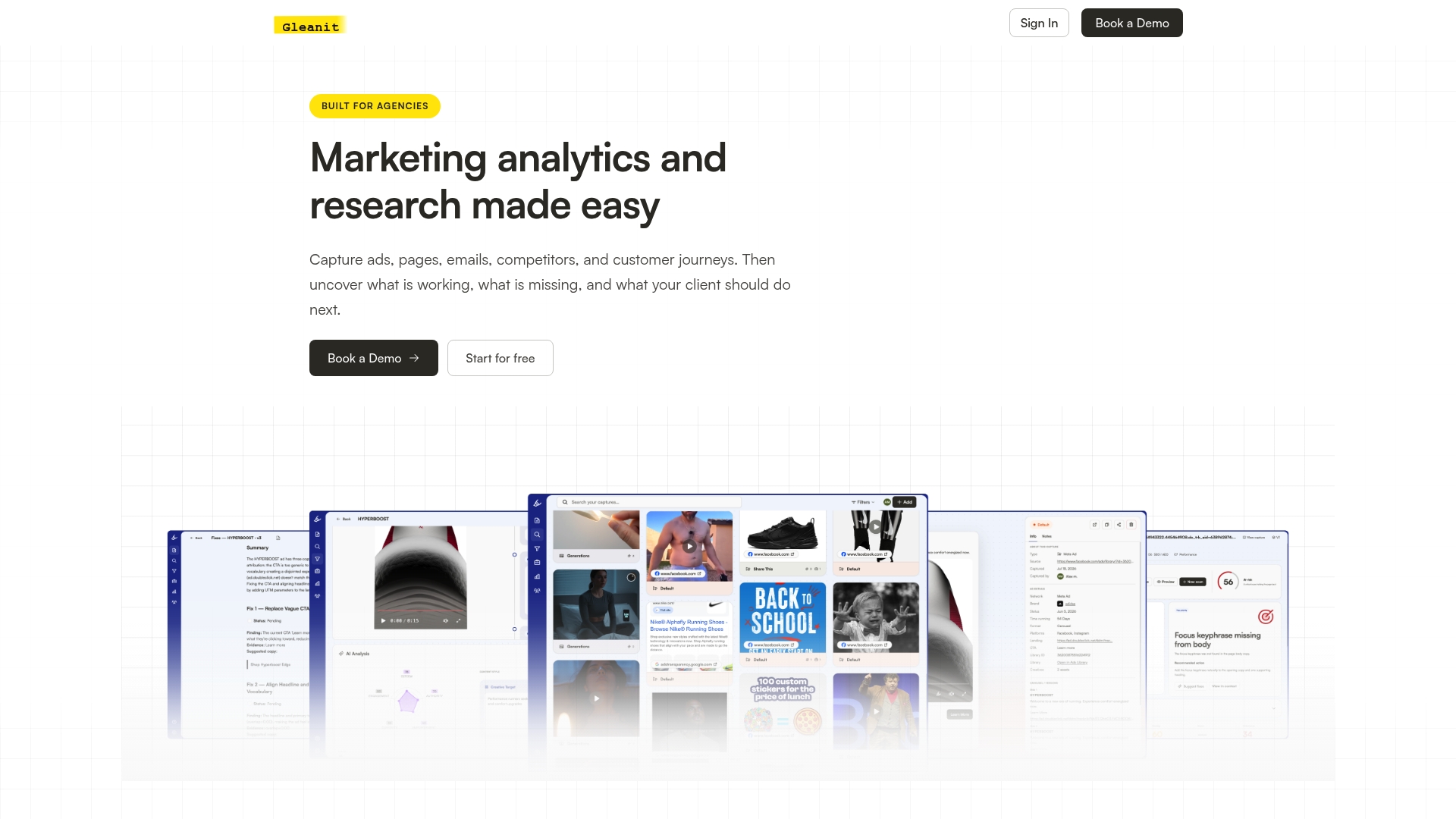
- The platform pulls ad and funnel data automatically so your team isn’t manually screenshotting creative for every report.
- The platform flags funnel gaps and ranks fixes by expected impact, so your next campaign brief starts with a clear priority list.
- The platform updates frequently, so new monitoring and reporting features show up without a migration.
| Plan | Price | Best for |
|---|---|---|
| Solo | $99 per month | Individual marketers managing reporting solo |
| Agency | $459 per month | Agency teams running multiple client workspaces |
If you want to see where your current creative and funnel setup is losing performance before you scale your next batch of Figma assets, start with a free ad audit and see what a prioritized fix list looks like for your own campaigns.
FAQ
What is Figma Buzz used for in marketing workflows?
Figma Buzz is built for marketers to create and scale campaign assets using locked, brand-safe templates. It supports bulk create for generating many variants from a spreadsheet, plus built-in approvals so assets get sign-off before export, according to Figma’s Buzz documentation.
How does bulk create work with CSV or XLSX files?
Bulk create maps each column in your spreadsheet to a layer in your template, then generates one asset per row. Figma’s bulk create guide confirms mapped fields are highlighted for verification before the batch is generated, which catches mismatches early.
When should a marketing team require approvals in Figma?
Approvals are worth requiring on assets tied to paid media spend or legal-reviewed copy, since a required approval blocks export until the designated reviewer signs off, per Figma’s approvals feature. Lower-stakes internal assets can skip the formal gate.
What is FigJam best used for in a campaign process?
FigJam is best used for early-stage ideation and cross-functional brainstorming, before any polished design work starts. Figma’s own product team uses it for generative sessions and voting to keep rough ideas separate from pixel-perfect files.
How can marketing teams track asset performance after launch?
Tracking performance after launch typically means connecting exported creative and funnel data to a reporting or analytics tool rather than reviewing results manually. Platforms like Gleanit automate that monitoring across ad channels and generate prioritized reports from the data, which pairs naturally with a Figma-based production pipeline.
Recommended
- Cut Report Prep to 1 Hour: AI Driven Figma Reports for Agencies
- Automate Marketing Reports for Agencies: Start With Data Governance
- Six Step Client Reporting Workflow for Agencies, Automation First
- 5 Step Data Storytelling for Marketing Reports That Drive Decisions
Corrections: ovannes@hearye.co or our editorial policy.