
The fastest path depends on your scale: an incoming webhook works for a single, simple alert feed; Workflow Builder handles no-code routing and basic approvals inside Slack; a connector or a monitoring platform like Gleanit suits production-grade, interactive alerts across several ad accounts or data sources. Pick based on how many sources you watch and how much action each alert needs to trigger.
TL;DR:
- Route campaign failures to shared channels, while new leads and high value visitors go to direct messages or small group channels for quick claims.
- Require a 15% drop to persist for 30 minutes before alerting, then use hourly or daily digests for lower severity events.
- Structured webhook fields for campaign IDs, metrics, and changes support buttons for acknowledgment, dashboard links, and reassignment; developers create triggers through Slack CLI.
- An analytics or marketing operations lead should own alert setup; escalate from a channel post to a direct message after one hour, then alert an outage contact.
Table of Contents
- What marketing teams actually use Slack alerts for
- Three practical ways to send alerts into Slack
- Webhook triggers and developer workflows that drive action
- Designing alerts that get acted on, not ignored
- Cutting the noise: suppression, thresholds, and digests
- How a monitoring-first platform like Gleanit fits your alert program
- Who should own the alert program
- Try Gleanit: prioritized Slack alerts without the webhook maze
- FAQ
- Sources
What marketing teams actually use Slack alerts for
Most marketing alerts fall into a handful of buckets: campaign performance anomalies (a cost-per-click spike, a conversion rate drop), spend pacing that’s running hot or cold against budget, conversion tracking failures, new lead or form submissions, known-account website visits, and brand mentions across social or review sites.
Each use case needs a slightly different payload. A spend-pacing alert needs the campaign name, the percentage over or under pace, and a link to the budget dashboard. A lead notification needs the contact’s name, source, and a CRM link. A brand mention needs the platform, the snippet of text, and a sentiment flag if you track one.
Where you send each alert matters as much as what’s in it:
- Campaign performance and tracking failures belong in a dedicated channel the whole team watches, not a DM.
- New leads and high-value website visitors often work better as a DM or a small-group channel so someone claims them fast.
- Brand mentions fit a shared channel with threads reserved for discussion so the main feed stays scannable.
Three practical ways to send alerts into Slack
Three patterns cover almost every marketing use case, and they’re not mutually exclusive.
- Incoming webhooks post a JSON payload to a unique URL tied to a channel, which Slack’s developer documentation describes as the fastest route from a script or tool straight into a channel. A basic payload is just
{"text": "Campaign X spend is 22% over pace"}, and the webhook URL is generated once during app setup, then reused by whatever system is firing the alert. - Workflow Builder lets non-developers assemble automated steps inside Slack, triggered by a webhook, a scheduled time, or a message containing a keyword, according to Slack’s own build guide. It’s the right tool when a marketer, not an engineer, needs to own the routing logic or add a simple approval step.
- Connectors or automation platforms sit between multiple data sources and Slack, which makes sense once you’re watching several ad accounts, a CRM, and an analytics tool at once. This is where a monitoring platform earns its keep: instead of wiring five separate webhooks, one connection handles the prioritization and delivery.
Webhook triggers and developer workflows that drive action
Simple text alerts get read and ignored. Actionable ones get acted on, and that distinction comes down to structure. Slack’s webhook trigger documentation describes a create-then-invoke pattern: a developer defines the trigger once using the Slack CLI, then any system can invoke it with a POST request carrying structured inputs, something like a JSON body with campaign_id, metric, and delta fields instead of a single line of text.
That structure is what lets you build Block Kit messages with real buttons instead of plain sentences:
- Add an Acknowledge button so someone can claim the alert without leaving Slack.
- Add an Open dashboard link that jumps straight to the relevant report.
- Include a Reassign action so the alert can move to the right owner if the first recipient is out.
Pro Tip: Log every button response back to a tracking sheet or ticketing tool, or you’ll end up with alerts that look handled but were never actually resolved.
Setting up the trigger itself typically needs developer access to the Slack CLI, while adjusting channel routing or message text afterward is usually an admin-level task anyone on the marketing ops side can handle.

Designing alerts that get acted on, not ignored
Format decides whether an alert gets read in two seconds or scrolled past.
- Put a short link to the dashboard and a timestamp right under the headline, not buried at the bottom.
- Use thread replies for follow-up discussion and context, keeping the main channel feed clean and scannable.
- Attach a small chart image or a link to one when a visual makes the anomaly obvious faster than numbers alone.
- Name channels by function and severity, like
#alerts-paid-highand#alerts-brand-digest, so the label itself sets expectations.
A consistent naming convention does more for adoption than any single feature. When people know #alerts-paid-high means “look now” and #alerts-brand-digest means “check once a day,” they stop opening every channel out of anxiety.
Cutting the noise: suppression, thresholds, and digests
Alert fatigue kills these systems faster than bad data does — which is why marketing teams rely on a comprehensive marketing automation checklist to audit their alert coverage and automation steps. The fix is building in friction before anything fires.
- Set thresholds with hysteresis instead of a single-point trigger, for example requiring a 15% drop to hold for 30 minutes before it counts as real, a pattern our guide to tuning ad-change thresholds walks through in more detail.
- Reserve real-time delivery for high-severity events and batch everything else into hourly or daily digests.
- Add deduplication logic and a suppression window so one flapping metric doesn’t fire the same alert five times in ten minutes.
A sustained-threshold rule (delta plus a time window) cuts false triggers compared to a single-point check, which is the core logic behind threshold tuning for ad alerts. Track your action rate and false-positive rate monthly. If people stop clicking into alerts, the thresholds are probably too loose.
How a monitoring-first platform like Gleanit fits your alert program
Once you’re tracking more than one or two ad accounts, hand-wiring webhooks stops scaling. We built Gleanit to watch Meta, TikTok, and Google activity alongside customer journey data in one connected view, so the alerts reaching Slack are already triaged by likely impact rather than raw and unsorted.
- We identify funnel gaps and suggest fixes prioritized by estimated ROI before anything hits a channel.
- We provide prebuilt alert templates for common agency cases such as spend pacing, tracking drop-offs, and competitor ad changes.
- New monitoring features are released frequently, so alert coverage keeps expanding without a rebuild on your end.
- AI-assisted reports are generated alongside the alerts, providing context instead of just raw numbers.
For teams running client workspaces, this replaces multiple separate webhook integrations with one feed that prioritizes important information.
Who should own the alert program
Alert configuration works best owned by whoever sits closest to the data, usually an analytics or marketing ops lead, not whoever happened to set up the first webhook. Escalation should step up in stages: channel post, then a direct message if nothing happens in an hour, then an assigned on-call contact for anything that looks like an outage. Track action rate, false-positive rate, and response time monthly to know if the system is actually working or just generating noise.
— Ovannes
Try Gleanit: prioritized Slack alerts without the webhook maze
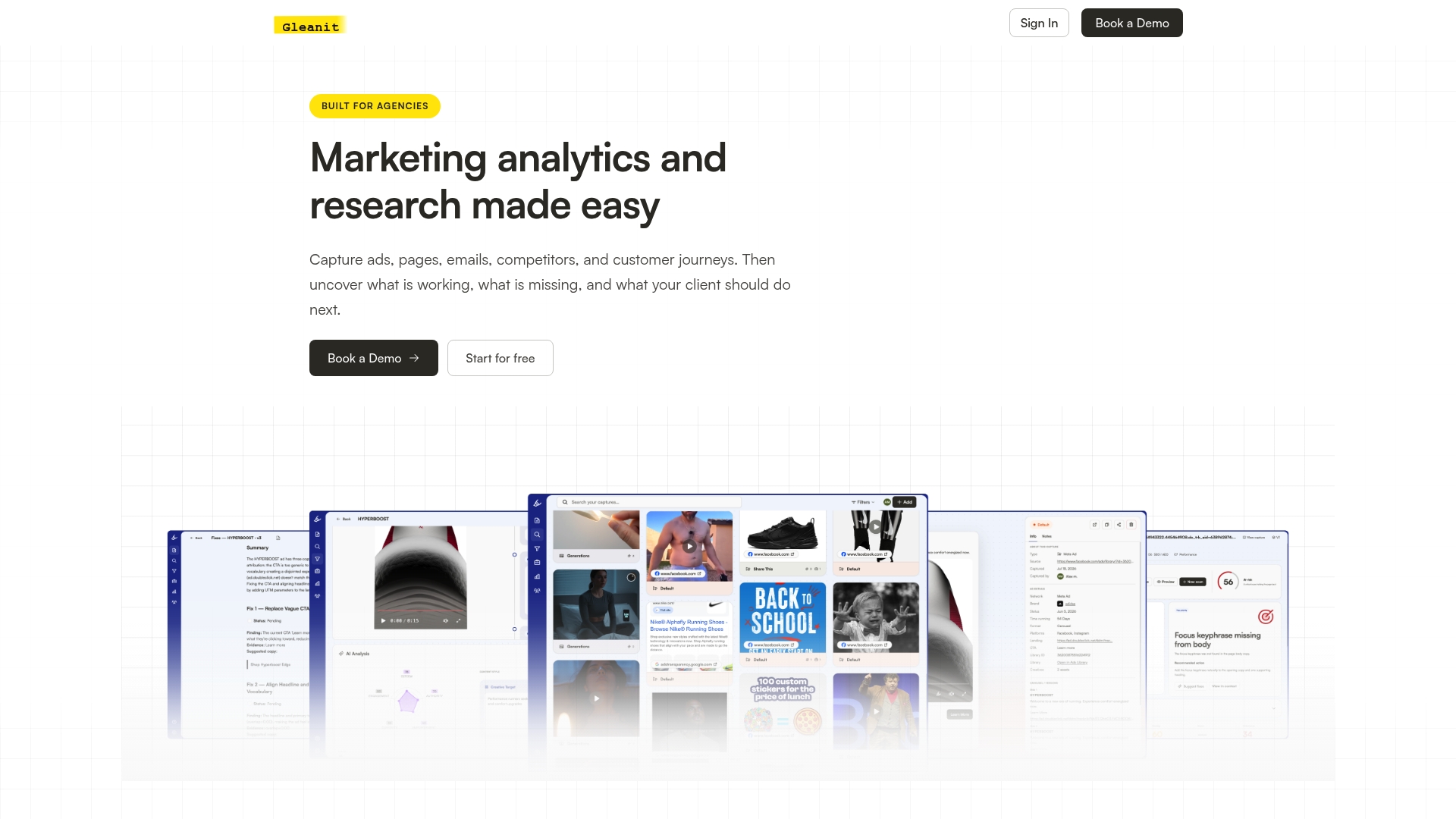
If you’re tired of stitching together webhooks for every ad account and calling it a monitoring system, we built Gleanit to do that work for you. We connect Meta, TikTok, Google, and your customer journey data into one view, prioritize the issues worth fixing, and push the ones that matter into Slack with context attached instead of a bare number.
- Start with a free ad audit to see what a prioritized alert actually looks like on your accounts.
- Compare plans on our pricing page, including the Solo and Agency tiers, before committing.
FAQ
How do I set up alerts in Slack?
For a single source, create an incoming webhook in your Slack app settings and point your tool at the generated URL, as described in Slack’s webhook docs. For routing from multiple sources or more complex logic, build a flow in Workflow Builder or connect a monitoring platform that delivers already-prioritized alerts.
Can my boss hear my Slack huddles?
Slack huddles are live audio or video sessions, not recorded by default, so a manager can’t listen in unless they’re actually in the huddle. Workspace admins can see huddle activity and history depending on plan and admin settings, but audio content itself isn’t captured.
What notifications does Slack send?
Slack sends notifications for direct messages, mentions, keyword matches you set, and activity in channels you’ve chosen to follow closely, alongside any custom alerts built through webhooks or Workflow Builder, per Slack’s own guidance for marketing teams. Notification scope is fully configurable per channel and per device.
How can I set up notifications for Slack reactions?
Workflow Builder supports triggers based on specific events, including messages and keywords, which teams use to approximate reaction-based automation, as outlined in Slack’s workflow guide. Native reaction-triggered workflows depend on your Slack plan, so check current Workflow Builder trigger options before building one.
What’s the difference between incoming webhooks and webhook triggers?
Incoming webhooks are the fastest route for simple, one-way text alerts into a channel. Webhook triggers, covered in Slack’s automation docs, support structured inputs and interactive workflows, making them the better choice when an alert needs buttons or follow-up actions.
Sources
- Sending messages using incoming webhooks | Slack Developer Docs
- Build a workflow: Create a workflow in Slack | Slack Help
Recommended
- Agencies: 5 Step Plan for Telegram Marketing Alerts That Cuts Noise
- Stop Budget Surprises: Agency Ad Change Alerts With 15% Threshold
- Stop Spot Checks: Automate LinkedIn Ad Monitoring for Agencies
- Tame Marketing Data Anomalies by Tuning 0.95 Threshold for Agencies
Corrections: ovannes@hearye.co or our editorial policy.