
Every marketing team should enable three alert types first: brand and web mentions for reputation, campaign KPI thresholds like CPA and conversion rate for ROI protection, and budget or payment alerts to prevent billing gaps from stalling live campaigns. Once those three are running, the rest of a marketing alerts setup is about layering in platform-specific monitoring. The steps below walk through each platform, starting with free tools and moving into advertising and dashboard systems.
TL;DR:
- Google Alerts covers indexed web pages, not social posts; use quoted phrases and exclusions, then test queries for a week before relying on them.
- Google Ads can flag CPA, conversion, status, and spend changes; managers should also monitor payment failures and budget caps in the separate account feed.
- Power BI alerts require numeric values on supported tiles and only fire after data refresh; connect Power Automate when a breach should launch workflows.
- Combine fixed thresholds with rolling change checks, and require at least 50 clicks or 20 conversions before percentage alerts fire to limit false alarms.
- Assign each alert to a named owner, send urgent spend or payment risks to chat, and route recurring issues to a ticketing system.
Table of Contents
- Types of marketing alerts and when to use them
- How to set up web and news monitoring with Google Alerts
- How to set up advertising-platform alerts in Google Ads
- Setting data-driven alerts in Power BI and similar dashboards
- Practical alert rules and threshold templates
- Operational workflow: routing, triage, and escalation
- Maintaining and tuning alerts over time
- Publisher perspective: how we design alerting for agencies
- Get a consolidated view instead of managing alerts platform by platform
- FAQ
- Sources
Types of marketing alerts and when to use them
Not every alert belongs in the same channel or runs on the same schedule. Matching the alert type to the right monitoring goal keeps your team responsive without drowning in notifications.
- Web and news mentions: track brand name, product name, or executive name across indexed pages to catch press coverage or reputation risks.
- Social mentions: useful for catching conversations in near real time, though most free web-alert tools do not cover social platforms, so this usually requires a dedicated social listening tool.
- Campaign performance thresholds: CPA, conversion rate, CTR, or ROAS crossing a set boundary signals a campaign that needs attention.
- Budget and payment or account status: failed charges, campaigns paused for budget caps, or disapprovals that stop spend entirely.
- Dashboard and data alerts: numeric thresholds on KPI tiles, like inventory counts or weekly lead totals, that flag when a business metric moves.
- API and webhook events: custom triggers built into internal tools, often used to route alerts straight into a ticketing or chat system.
The real decision is frequency. Real-time alerts make sense for anything tied to spend or payment risk, where a few hours of delay costs money. Daily summaries work better for brand mentions and dashboard trends, where the goal is awareness rather than immediate action. A campaign that suddenly shows zero conversions after six hours of spend deserves a real-time ping. A gradual seven-day decline in branded search mentions is better suited to a weekly digest, since reacting to daily noise would just create fatigue.
How to set up web and news monitoring with Google Alerts
Google Alerts remains the fastest way to monitor brand mentions, competitor news, and industry topics without paying for a tool. The setup takes under five minutes per query.
- Go to the Google Alerts page and sign in with a Google account.
- Type your search query into the box at the top, such as your brand name or a competitor’s product line.
- Click Show options to reveal the configuration fields.
- Set How often: choose as-it-happens, once a day, or once a week.
- Choose Sources: News, Blogs, Web, Video, Books, Discussions, or Finance, or leave it on Automatic.
- Set Language and Region to narrow results to relevant markets.
- Choose How many: only the best results or all results.
- Set Deliver to: email or an RSS feed.
- Click Create Alert.
Query construction determines whether an alert is useful or just noise. Wrap exact phrases in quotes (“Gleanit platform”) to avoid partial matches. Use a minus sign to exclude irrelevant terms, for example jaguar -car when tracking an unrelated brand name. The OR operator combines variants, like Gleanit OR "Glean It", and an asterisk acts as a wildcard placeholder in a phrase. These setup fields, including the frequency, source, and delivery options, come straight from Google’s own alert configuration guide.
For delivery, email suits teams that check inboxes regularly, while RSS works better if you are already piping feeds into a dashboard or content aggregator. If one broad query produces too many alerts, split it into narrower queries by product line or region instead of trying to filter one combined feed.
Pro Tip: Run a test query for a week before relying on it, then tighten the phrase or add exclusions based on what actually shows up.
Google Alerts has real limits worth knowing before you build a monitoring plan around it. It does not monitor social media posts, and results only surface from indexed pages, so breaking news on a closed platform will not appear here, a limitation confirmed by independent setup guides. Once your brand monitoring needs to extend beyond news and blogs, you will need to add platform-level monitoring for ads and social activity.
How to set up advertising-platform alerts in Google Ads
Web mentions cover reputation, but campaign health lives inside the ad platform itself. Google Ads has two separate alerting layers worth configuring: custom notifications at the account or campaign level, and manager account notifications for anyone overseeing multiple accounts.
Custom notifications are found under Settings → Custom notifications in both the mobile app and the web interface, where you can scope an alert to the whole account, a specific campaign, or an ad group, according to Google Ads documentation. Common triggers worth setting up:
- Performance-change notifications, where you pick a metric (CTR, CPA, conversion rate), a threshold, and a comparison period.
- Status notifications for events like a campaign being “limited by budget” or an ad getting disapproved.
- Spend-pace notifications that flag when daily spend is tracking well above or below the budget.
If you manage several accounts, the manager account (MCC) view adds a separate Notifications feed covering payment failures, campaigns ending, and budget caps being hit. These notifications can be filtered by account and dismissed once reviewed, and they update at varying frequencies: some daily summaries refresh overnight in the advertiser’s local time zone, while others update continuously as the system detects new trigger conditions, per Google’s manager account notification guide.
Pro Tip: Dismiss resolved notifications daily in the manager view, since an unreviewed queue quickly becomes impossible to scan for the one alert that actually matters.
Google Ads also distinguishes between built-in recommended rules and fully custom rules. Built-in rules tend to warn you about a condition, like an ad missing assets or conversion tracking not being set up. Custom rules can go further and actually block a change outright, which is useful for account hygiene checks before a campaign goes live, a distinction laid out in Google’s Ads Editor rules documentation. Use warnings for anything a human should just be aware of, and reserve blocking rules for mistakes that would waste real budget, like launching a campaign with no conversion tracking attached. For a broader checklist of what to watch across live campaigns, our practical checklist for monitoring Google Ads walks through the recurring checks worth automating.
Setting data-driven alerts in Power BI and similar dashboards
Dashboard alerts cover a different layer: the business metrics that live outside the ad platform, like weekly lead volume, inventory counts, or revenue pacing.
- Open the dashboard in the Power BI service and pin a supported visual, such as a gauge, KPI, or card, since these are the tile types that support alerts.
- Hover over the tile and select the alert icon, then set a condition, like “above” or “below” a specific numeric value.
- Choose how often the alert should be evaluated, which ties to how frequently the underlying data refreshes.
- Confirm delivery to the Notification center, and optionally enable an email copy as well.
These constraints come directly from Microsoft’s Power BI data alerts documentation: alerts only work on numeric values, only trigger when data actually refreshes, and streaming datasets need to be pinned as a supported visual type before an alert rule can attach to them. A static value that never refreshes will never trigger an alert no matter how far it drifts from your threshold.
For teams that want alerts to do more than notify, Power BI integrates with Power Automate, letting a threshold breach kick off a workflow, like creating a task or posting to a channel, rather than just sending a notification that someone has to act on manually. Practical use cases include flagging when inventory drops below a reorder point or when a daily conversion tally falls short of a weekly target. On shared dashboards, document who owns each alert rule and where its notifications land, since a tile with five people watching it and no assigned owner tends to get ignored by everyone.
Practical alert rules and threshold templates
Generic thresholds catch obvious problems. Subtle failures, like a campaign that technically “works” but burns budget without converting, need a sharper rule set. A few templates worth adapting to your own baselines:
- CPA spike: CPA exceeds a fixed dollar amount, or rises more than 30% above the trailing 7-day average, whichever threshold fires first.
- Daily spend run-rate: daily spend exceeds 120% of the daily budget pace, which usually signals a bid strategy change or an auction shift worth investigating.
- Zero-conversion burn: spend crosses a defined dollar amount while conversions remain at zero for a set window, commonly 24 to 48 hours depending on typical conversion volume.
- Trend-based check: rolling 24-hour or 72-hour percent change in a core metric, rather than a single static threshold, to catch gradual drift that a fixed number would miss.
Static thresholds are easy to set up but miss slow decay. Pairing a static rule with a rolling percent-change check catches both the sudden spike and the slow bleed.
One pattern worth building into every threshold: require a minimum data volume, like at least 50 clicks or 20 conversions, before a percentage-based alert can fire, since a campaign with five clicks can swing 100% on a single extra click and trigger nothing but false positives.

For campaigns tracked through QR codes on print or out-of-home placements, scan-based tools like QRlytics extend the same threshold thinking to offline-to-online tracking, flagging unusual scan volume the same way a dashboard flags unusual spend.
Operational workflow: routing, triage, and escalation
An alert that fires into a shared inbox with no owner is functionally the same as no alert at all. Assign ownership by alert type before you turn anything on: a paid-media owner handles CPA and spend alerts, an analytics owner handles dashboard and data alerts, and a community manager handles brand and social mentions.
When an alert fires, a short triage sequence keeps response consistent across the team:
- Verify the data source first, since a tracking gap can look identical to a real performance drop.
- Check recent bids, budgets, or creative changes that might explain the shift before assuming it is organic.
- Review the landing page for downtime, broken forms, or a recent redesign that changed conversion flow.
- Escalate to pausing or adjusting the campaign, or open a ticket if the fix requires another team.
Route alerts by urgency, not by convenience. Time-sensitive alerts, like a zero-conversion burn or a payment failure, belong in a chat channel built for urgent pings. Lower-priority items, like weekly brand-mention summaries, belong in an email digest. Anything that needs tracking over time, like a recurring disapproval pattern, is better routed through a webhook into a ticketing system than left in a channel where it will scroll out of view. Our guide to monitoring Meta ads in a fast, automation-first workflow covers how to split ownership across platforms when one person is not watching every channel alone.
Maintaining and tuning alerts over time
Alerts rot fast. A threshold that made sense when a campaign launched three months ago can be wildly out of date once spend or baseline performance shifts.
- Review critical alerts, the ones tied to spend and payment, weekly to confirm thresholds still match current baselines.
- Review low-priority alerts, like brand-mention digests, monthly, and archive any that have not produced a useful signal in that window.
- Apply a consistent naming convention so anyone on the team can read an alert’s purpose at a glance, for example:
GoogleAds | CPA-spike | paid-media | high. - De-duplicate overlapping alerts that fire on the same underlying condition through two different platforms.
Pro Tip: If an alert has fired more than a few times without anyone changing a campaign because of it, the threshold is probably too sensitive and worth loosening.
Publisher perspective: how we design alerting for agencies
We build monitoring at Gleanit around one problem agencies know well: alerts that fire constantly but rarely point to the fix. Our platform runs automated monitoring across multiple ad platforms in one connected view, then prioritizes the recommendations by ROI instead of handing teams a flat list of everything that moved. That ranking is what actually shortens time-to-resolution, since a team can act on the top item instead of triaging twenty equally loud alerts.
— Ovannes
Get a consolidated view instead of managing alerts platform by platform
Setting up alerts across Google Alerts, Google Ads, and a dashboard tool works, but it leaves you checking three or four separate systems to understand one campaign’s health. We built the platform to pull that monitoring into a single workspace, with automated ad tracking across major platforms, AI-generated audits, and frequent feature updates.
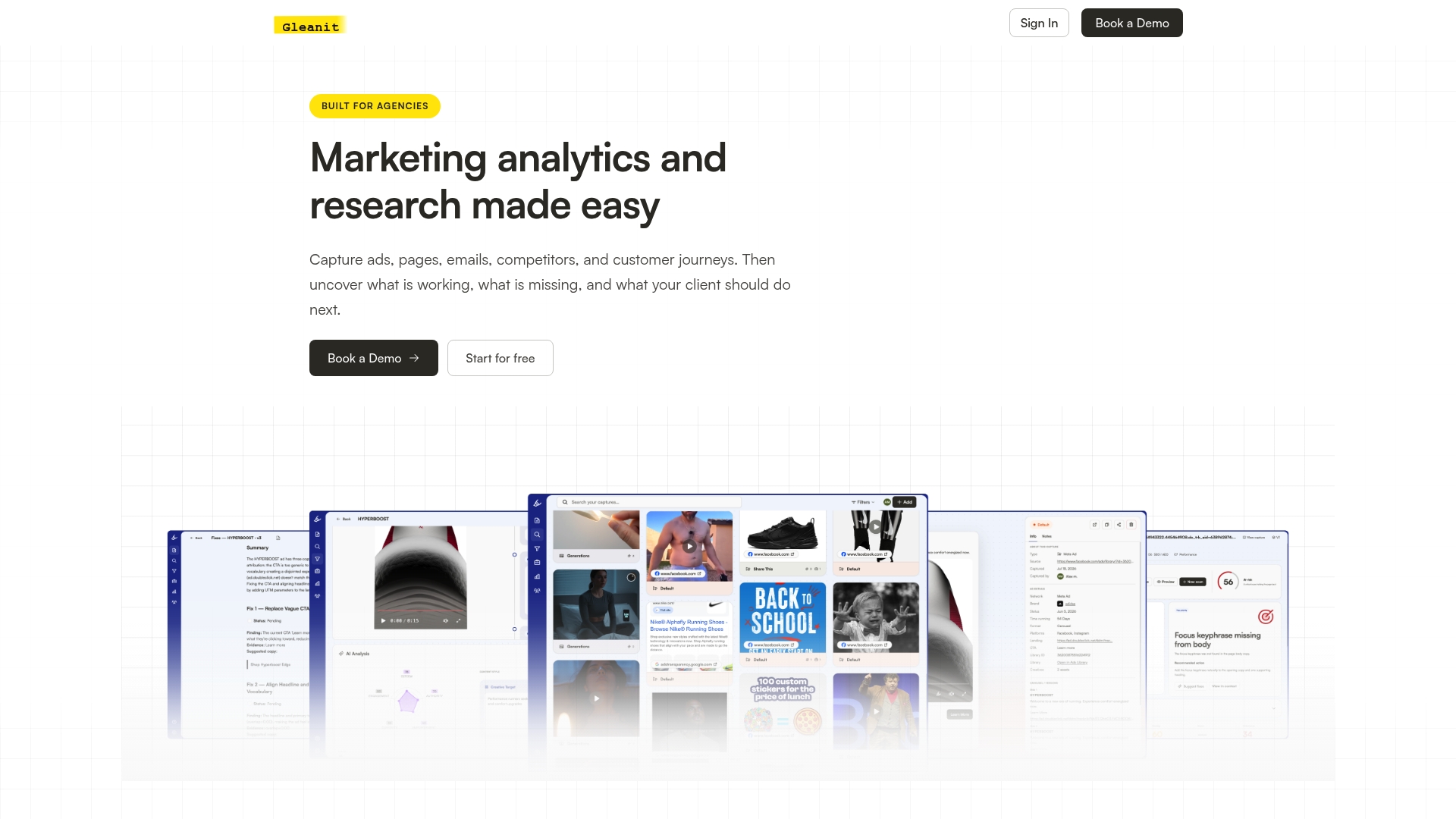
- Agencies and in-house teams managing multiple client accounts or campaigns who want one alert and triage workflow instead of four.
- Teams already stretched thin on reporting who want AI-assisted audits instead of building every check by hand.
- Anyone who just set up the alerts above and wants a faster way to see what actually needs attention first.
Start with a free marketing audit to see how your current setup scores, or go straight to Gleanit pricing to compare the Solo plan at $99 per month against the Agency plan at $459 per month.
FAQ
How do you set up alerts?
Start by identifying what you need to monitor, brand mentions, campaign spend, or dashboard metrics, then use the matching tool: Google Alerts for web mentions, Google Ads custom notifications for campaign performance, or Power BI alert rules for dashboard KPIs. Each tool asks you to set a trigger condition and a delivery method, either email or an in-app notification.
What are the three types of alerts?
A practical starter set covers brand and web mentions for reputation, campaign KPI thresholds like CPA or conversion rate for performance, and budget or payment alerts to catch billing issues before they pause active campaigns. Many teams add a fourth category, dashboard or data alerts, once the first three are running reliably.
How do I set Google Alerts for company news?
Enter your company name in quotes on the Google Alerts page, click Show options, and set the source to News so results pull from news coverage rather than the broader web. Choose As-it-happens for frequency if you need to catch press mentions quickly, and deliver results to email for the easiest daily check.
How do you set up price alerts?
Price alerts typically live inside a retailer’s own tracking tool or a third-party price-tracking service rather than Google Alerts, since Google Alerts monitors indexed content, not live pricing data. For marketing teams tracking competitor pricing pages, a web-mention alert can flag when a page updates, but confirming the actual price change still requires a manual check or a dedicated price-monitoring tool.
Sources
- Create an alert - Google Search Help
- Set data alerts in the Power BI service - Power BI | Microsoft Learn
Recommended
- Monitor Meta Ads in 10 Minutes: 2026 Automation First Workflow for Agencies
- Automate Marketing Reports for Agencies: Start With Data Governance
- Monitor Google Ads: A Practical Checklist for Marketers
- Unified Marketing Dashboard: Faster Insights for Agencies
Corrections: ovannes@hearye.co or our editorial policy.