
Record user journeys by instrumenting event-based tracking for every page and interaction, following the GA4 model, then verify results with DebugView and browser devtools. The fastest path is gtag.js or Google Tag Manager for recommended and custom events, with session replay added only where you need visual context on a specific session. Confirm everything fires correctly before trusting the data.
TL;DR:
- Start with the first five events tied directly to revenue, such as signups, add to cart, form submissions, and key page views.
- Standard GA4 properties allow 500 distinct event types, compared with 2,000 for Analytics 360, so avoid creating separate events for minor interface variations.
- Use event based triggers to start replay after cart abandonment or form errors, and mask payment details and personal identifiers before recording sessions.
- After each new event, test it in DebugView, confirm it appears in the Realtime report, and inspect the browser’s Network tab for accurate parameters.
Table of Contents
- Choosing between event tracking, session replay, and server-side collection
- Setting up GA4 events with gtag.js and Google Tag Manager
- Recording clicks, scrolls, touches, and SPA navigation
- Session replay versus event-based tracking: when each helps
- Verifying and debugging recorded events
- Naming events and parameters so journey data stays queryable
- Privacy, consent, and data volume in practice
- Common pitfalls and quick wins
- Prioritizing ROI-focused journey signals as an agency
- Turning recorded journeys into prioritized fixes with Gleanit
- FAQ
- Sources
Choosing between event tracking, session replay, and server-side collection
Several approaches are used to record user journeys, and picking the right one (or combination) depends on what question you’re trying to answer.
Event-based analytics sends structured data points, like page_view, click, or purchase, each with parameters describing what happened. This structure is what lets you build funnels, segment by device or traffic source, and query journeys at scale. It’s the backbone of GA4’s event model, which logs events with parameters rather than the older pageview-and-goal structure.
Session replay records individual visits as a video-like playback, showing mouse movement, clicks, and form interactions in context. It’s useful for understanding why a specific user abandoned a checkout, but it doesn’t scale the way structured events do: you can’t easily query “how many sessions included three scroll events and a cart abandonment” from raw replay footage, and storing full-session recordings raises both cost and privacy considerations.
Server-side collection moves event processing to a server you control, rather than relying solely on client-side JavaScript. It helps with ad blocker resilience, first-party data control, and consistency when you need to enrich events with backend data (like order value after payment confirmation) before sending them downstream.
A short way to decide:
- Need funnel analysis, segmentation, or dashboards: build on event-based tracking first.
- Need to understand a single confusing session or validate a UX hypothesis: add targeted session replay.
- Need resilience against blockers or tighter control over first-party data: layer in server-side collection.
- Need all three: start with events, add replay for debugging edge cases, and move to server-side once volume or compliance demands it.
Most teams get the most value starting with event tracking, since it’s the foundation everything else builds on.
Setting up GA4 events with gtag.js and Google Tag Manager
GA4 automatically collects a handful of events, page views and scroll milestones among them, but most of the journey detail you actually want requires setup. Google splits these into recommended events, which have predefined names and parameters that unlock richer reporting, and custom events, which you define yourself for anything recommended events don’t cover, according to GA4’s developer documentation.
Here’s the basic sequence for implementation:
- Decide which events matter. Start with the actions tied to revenue or engagement: signups, add-to-cart, form submissions, key page views.
- Check if a recommended event fits. Recommended events come with standardized parameters, like an
itemsarray for ecommerce events, so use these before inventing your own names. - Implement with gtag.js using the pattern
gtag('event', 'event_name', { parameter_one: 'value', parameter_two: 'value' }), placed where the action occurs (a button click handler, a form submit callback, and so on). - Or implement with Google Tag Manager, where you create a trigger (the condition, like a click on a specific button) and a tag (the GA4 event that fires when the trigger matches), without touching the site’s codebase directly.
- Define custom events only when nothing recommended covers your need, following the same naming conventions you use elsewhere.
- Enable DebugView in GA4 and perform the action on a test device to confirm the event and its parameters arrive as expected, then cross-check the same activity in the Realtime report, a sequence GA4’s setup documentation recommends for newly configured events.
Keep event volume in mind while planning: standard GA4 properties support up to 500 distinct event types, while Google Analytics 360 raises that ceiling to 2,000, with no cap on total event volume. That’s rarely a problem if you’re disciplined about naming, but it’s worth knowing before you start creating a new event for every minor UI variation. For teams that want outside help setting up the initial configuration, Anchor Wave’s GA4 setup guide walks through the process from a hands-on, small-business angle.
Pro Tip: Build your first five events around the funnel steps that lead directly to revenue, not every click you can technically capture.
Recording clicks, scrolls, touches, and SPA navigation
Once the event pipeline works, the next question is what to actually wire up. A handful of patterns cover most of what you need to reconstruct a page-by-page journey.
- Clicks: use a single delegated listener on the document rather than one per element, and capture
element_id, a short text snippet from the clicked element,page_path, and a timestamp so you can reconstruct sequence. - Scrolls: fire events at selected scroll thresholds rather than continuously, sending a
scroll_percentparameter so you can see how far people typically get down a page. - Touch events: listen for
touchstartandtouchendseparately on mobile, since the gap between them helps distinguish a tap from a swipe or a long press. - SPA navigation: hook into
history.pushStateand thepopstateevent (or your framework’s router events, like Next.js route change hooks or Vue Router’safterEach) to fire apage_viewmanually, since single-page apps don’t trigger a full page load on route change. - Mouse movement: avoid logging raw coordinates on every
mousemovefiring, since this generates enormous volume for little analytical value. Sample at intervals or aggregate into zones (did the cursor hover the pricing table, yes or no) instead.
The common thread across all of these is restraint: record the signal that answers a question you actually have, not every technically available data point. A page that fires too many scroll events because you didn’t throttle the listener is harder to analyze than one that fires a few clean threshold events. For more on which page-level signals are worth prioritizing before you run tests, Gleanit’s guide to landing page metrics covers the ones that tend to matter most.
Session replay versus event-based tracking: when each helps
Session replay and event-based tracking solve different problems, and treating one as a replacement for the other usually backfires.
Event-based tracking is what you query. It’s structured, aggregable, and built for answering questions like “how many users completed checkout” across many sessions. Session replay is what you watch. It’s unstructured but visually rich, and it’s built for answering “why did this specific user get stuck,” a question no amount of aggregate event data fully answers on its own.
The most efficient pattern is event-triggered replay: configure your replay tool to start capturing (or flag a session for review) only when a key event fires unexpectedly, like a cart abandonment after an add-to-cart event, or an error event on a critical form. This keeps replay storage focused on sessions worth watching instead of recording everything indiscriminately.
A few trade-offs to weigh before expanding replay coverage:
- Performance: continuous replay scripts add client-side overhead, especially on lower-end mobile devices.
- Storage and cost: full-session video-style capture scales in cost far faster than lightweight event data.
- Privacy: replay tools can inadvertently capture sensitive form inputs unless you explicitly mask fields like payment details or personal identifiers.
Use replay as a scalpel for specific investigations, not a dragnet running on every session.
Verifying and debugging recorded events
Instrumentation is only useful if you trust the data it produces, so verification deserves its own workflow, not an afterthought after launch.
- Open GA4 DebugView and perform the action you just instrumented on a device flagged for debug mode, watching the event name and every parameter populate in real time, as GA4’s events documentation recommends for new event validation.
- Cross-check with the Realtime report to confirm the event also shows up in standard (non-debug) reporting, which catches configuration mismatches DebugView alone might miss.
- Inspect the Network tab in your browser’s devtools to see the actual request payload GA4 sends, confirming parameter values match what you expect rather than trusting the code alone.
- Use Chrome DevTools Recorder for flow debugging, not analytics validation. It’s built to reproduce and replay specific user flows for developers, and you can import or export scripts for use in CI pipelines, but Chrome’s own documentation is clear that it’s not a substitute for analytics tools measuring aggregate live behavior across your visitor base.
Running through this sequence every time you add a new event catches the majority of tracking bugs before they corrupt weeks of reporting.
Naming events and parameters so journey data stays queryable
A tracking setup is only as useful as its consistency. Pick a naming convention early: lowercase, underscores, and a short taxonomy prefix for event groups, like page_view, ui_click, or conversion_signup, so anyone scanning your event list can tell at a glance what category an event belongs to.
Reuse common parameters across events rather than inventing new names for the same concept. page_path, route_name, element_id, scroll_percent, and session or user identifiers (user_id, session_id) should mean the same thing everywhere they appear. This reuse is what lets you join disparate events into a single journey later: if ui_click and conversion_signup both carry session_id, you can trace the click that preceded the signup without guesswork. A tracking plan, even a simple shared spreadsheet, keeps this consistent as more people touch the implementation.
Privacy, consent, and data volume in practice
Recording journeys means handling real user data, so consent and restraint matter as much as technical accuracy. Honor whatever consent framework applies to your audience before firing tracking scripts, and never record sensitive inputs like passwords, payment details, or health information, even accidentally through a replay tool’s default capture settings.
High-frequency signals, mouse movement especially, should be sampled or aggregated rather than logged in full. Recording every pixel of cursor movement for every visitor generates volume with little added insight and real privacy exposure. Document what you capture and why in a simple tracking plan, so anyone auditing the setup later (including a future version of your own team) understands the reasoning behind each event.
Common pitfalls and quick wins
A few mistakes show up repeatedly in journey tracking setups, and most are avoidable with a bit of discipline upfront.
Inconsistent naming is the most common: one event called signUp, another called sign_up_completed, and suddenly funnel queries miss data silently. Unverified events are a close second: an event that looked right in testing but silently stopped firing after a site update, caught only months later when a report looks wrong. Over-instrumentation is the quieter problem, where teams track every possible interaction and end up with noisy, expensive datasets that obscure the handful of signals that actually drive decisions. Gleanit’s marketing analytics checklist covers a practical sequence agencies use to catch these issues before they compound.
Pro Tip: Centralize every event definition in one place, a GTM data layer document or shared tracking plan, and review it before each new feature launch.

Prioritizing ROI-focused journey signals as an agency
Most teams instrument too much too early. The better instinct is to map the handful of journey steps that touch revenue first, a signup, a checkout, a demo request, and get those rock solid before expanding outward.
Structured events give you the scale to report across every client account; targeted session replay gives you the story to explain a number in a client meeting. The agencies that handle this well don’t choose one over the other. They use events for the dashboard and reserve replay for the moments a client asks “why did this drop.” Automating the audit and reporting layer on top of that data, rather than rebuilding it account by account, is what actually frees up time for the strategy work clients pay for. Gleanit’s take on unified dashboards goes further into what that consolidation looks like in practice.
— Ovannes
Turning recorded journeys into prioritized fixes with Gleanit
Setting up events, verifying them, and reading the resulting funnel data is a real time investment, and once it’s done, the harder question is often “which gap do we fix first.” That’s the piece we built Gleanit around: automated monitoring of customer journeys and ad performance across Meta, TikTok, and Google, surfaced into one connected view with gaps flagged and fixes prioritized by likely ROI, rather than left for someone to dig through manually.
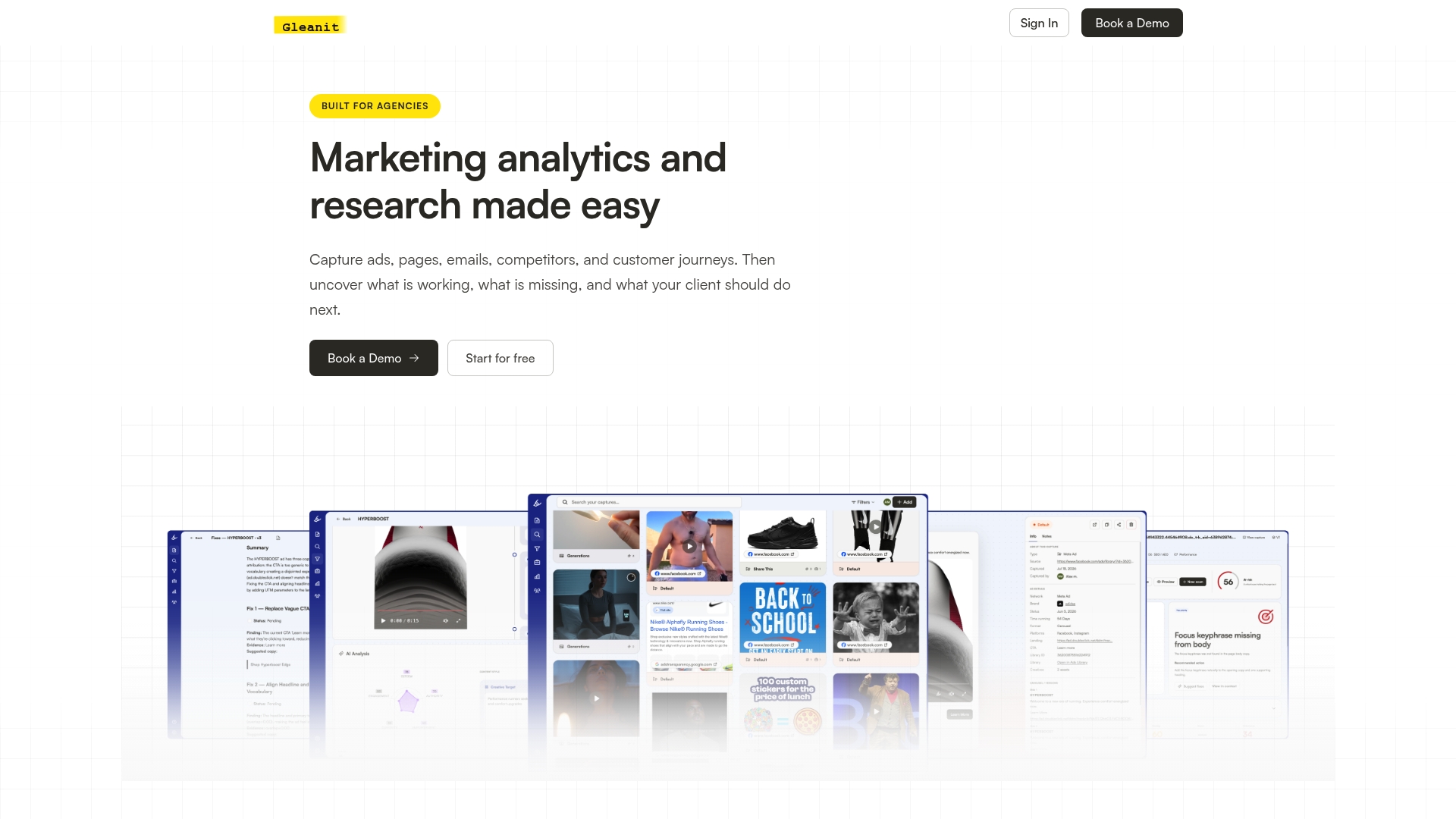
If you want to see what this looks like against your own funnel before committing to anything, we offer several free starting points:
- Try our free marketing audit to see funnel gaps surfaced automatically.
- Run a free landing page audit if page-level drop-off is your current question.
- Check a free ad audit or free competitor analysis if the gap you suspect sits upstream of the page.
From there, our Solo and Agency plans extend that same automated monitoring across every client workspace you manage, with weekly feature updates and AI-assisted reporting built in.
FAQ
What is a user journey map?
A user journey map is a visual representation of the steps a person takes while interacting with a website or product, from first visit through to a goal like a purchase or signup. It typically combines the sequence of pages or touchpoints with the actions and friction points observed at each stage. Teams build these maps using the structured event data described above to replace guesswork with actual recorded behavior.
What are the main stages of a customer journey?
Customer journeys are commonly broken into awareness, consideration, decision, retention, and advocacy, though the exact labels vary by framework and industry. Each stage maps to different events worth tracking, such as a first page view for awareness or a repeat purchase event for retention. Recording events consistently across these stages is what lets you see where people drop off between them.
What is the difference between a user story and a user journey?
A user story is a short description of a feature or need from a user’s perspective, typically used in software development to define what to build. A user journey, by contrast, maps the actual sequence of steps and interactions a person takes across a product or site, often reconstructed from recorded events rather than written as a hypothesis. They serve different purposes: one guides what to build, the other shows what actually happened.
What is the user journey of a website?
A website’s user journey is the specific path a visitor takes from arrival to exit, including which pages they view, what they click, how far they scroll, and where they leave. This path is captured through event-based tracking, tools like GA4 record each page view and interaction as a separate event with parameters describing it, which analysts then reconstruct into a sequence. Session replay can add visual context to a specific instance of that journey when deeper investigation is needed.
How do I verify that my tracking events are working correctly?
Use GA4’s DebugView to watch events and their parameters arrive in real time as you perform the tracked action, then confirm the same activity appears in the Realtime report under normal (non-debug) conditions. Checking the browser’s Network tab lets you inspect the actual request payload for accuracy. Chrome DevTools Recorder can help reproduce the flow for developer debugging, but it isn’t built to replace analytics tools for measuring real user behavior at scale.
Sources
- Developers
- Recommended events | Google Analytics | Google for Developers
- GA4 Recommended events - Analytics Help
- Developer
Recommended
- 8 Steps Agencies Use to Fix Tracking: A Marketing Analytics Checklist
- Six Step Client Reporting Workflow for Agencies, Automation First
- Customer Journey Analytics: A Practical Guide for Marketing Teams
Corrections: ovannes@hearye.co or our editorial policy.